SV Guide: SV SERP Guide: Setting Up Your Project
This guide helps new users get started with tracking website rankings on search engines using SearchVector (SV). You’ll learn how to add your website, competitors, and keywords to track your SERP (Search Engine Results Page) performance.
🚀 1. Creating a New Project
To begin tracking rankings, you must first create a new project.
🧭 Steps:
-
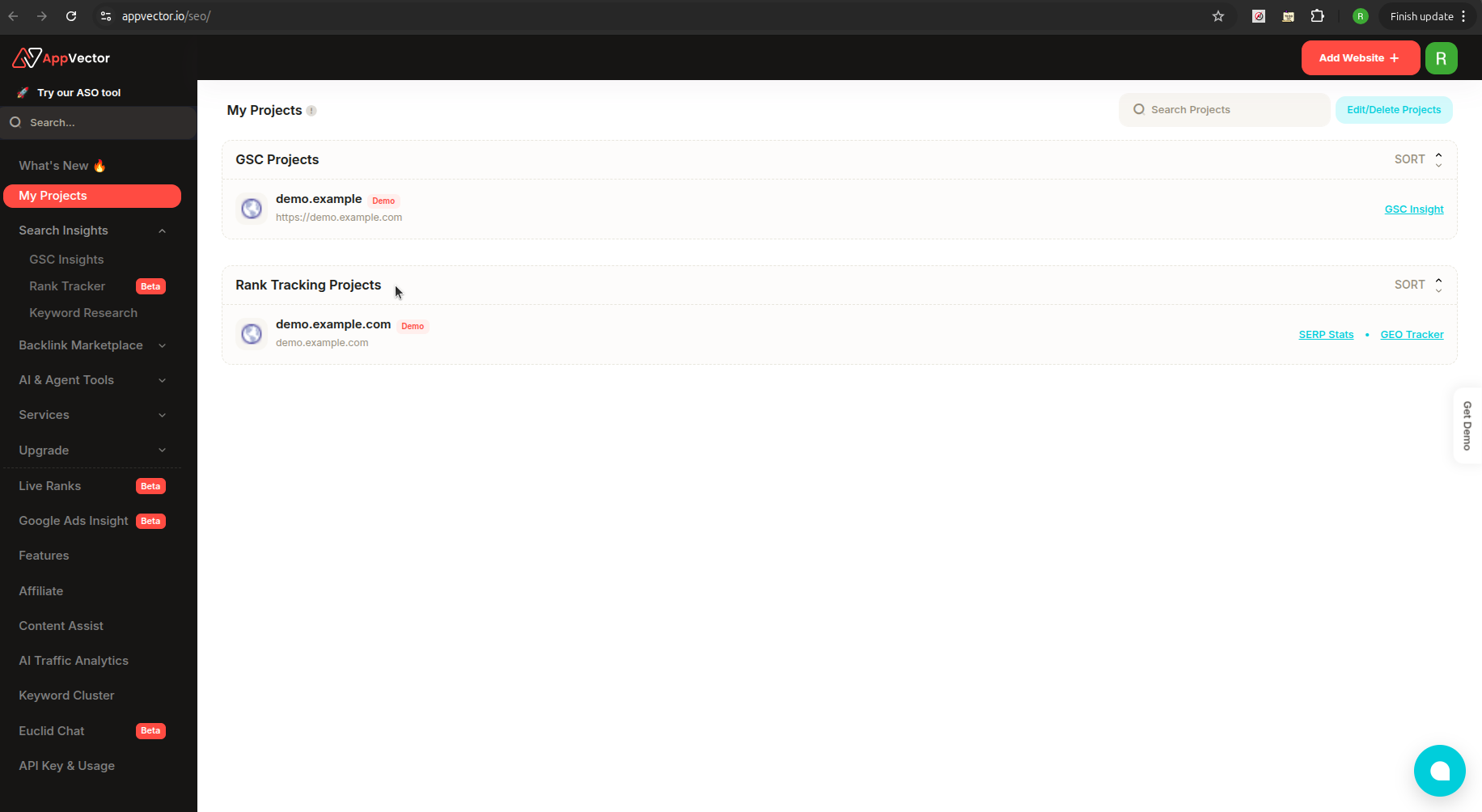
Go to the “My Projects” dashboard.
-
Click the “Add Website” button at the top-right corner.
-
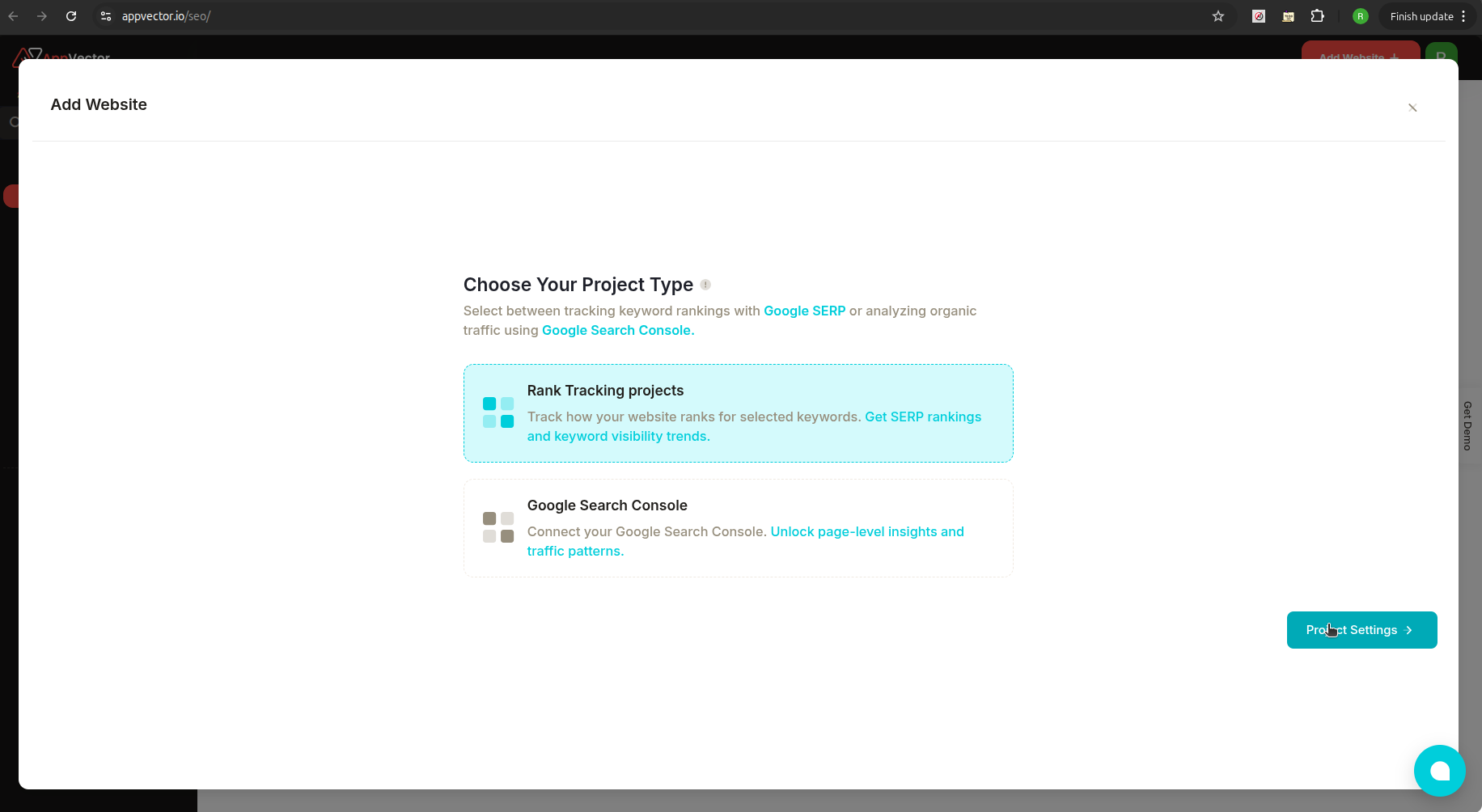
A prompt will appear: “Choose Your Project Type”.
-
Select “Rank Tracking Projects”.
-
Click “Project Settings” to start the setup.
⚙️ 2. Project Setup Wizard
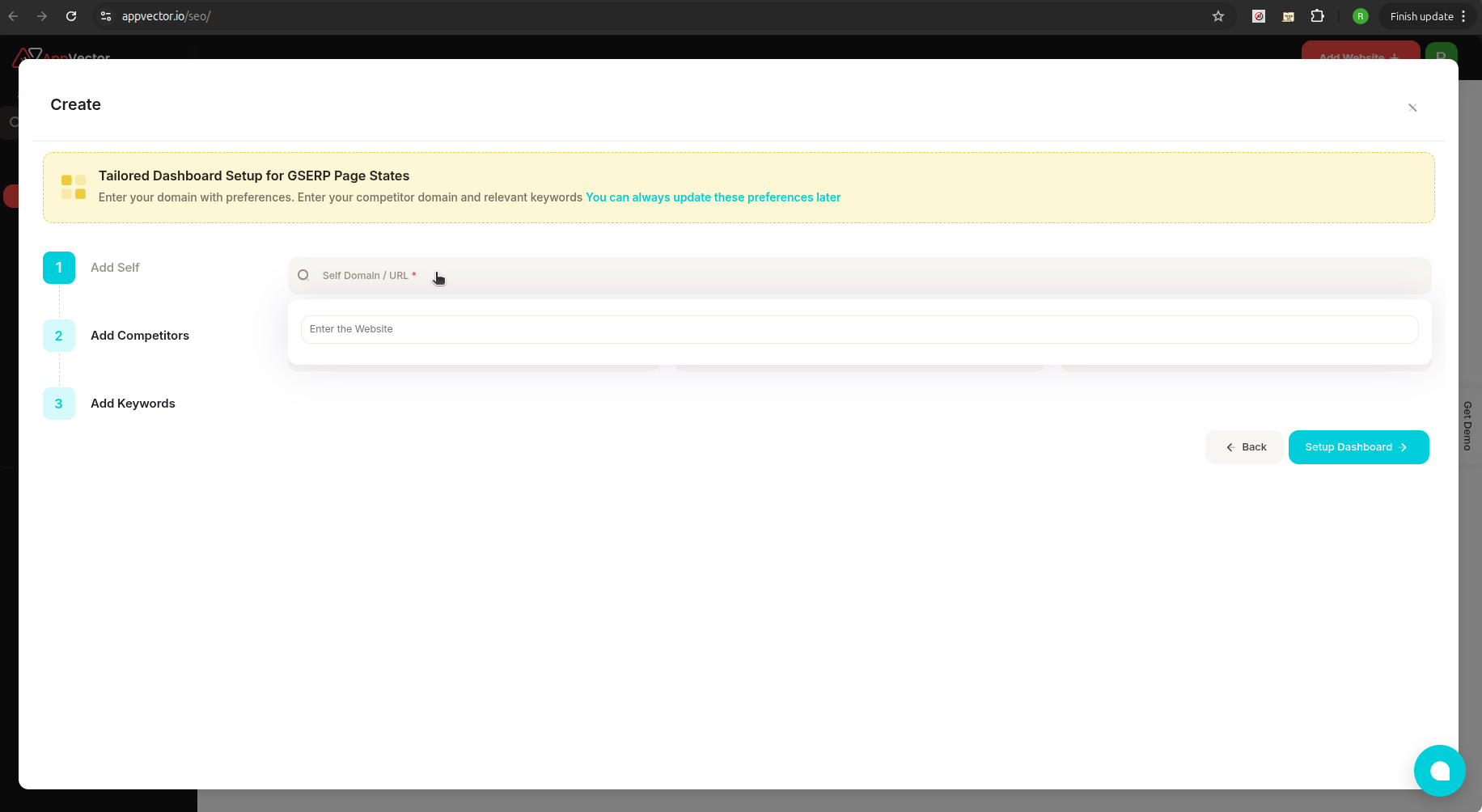
You’ll be guided through a 3-step setup process:
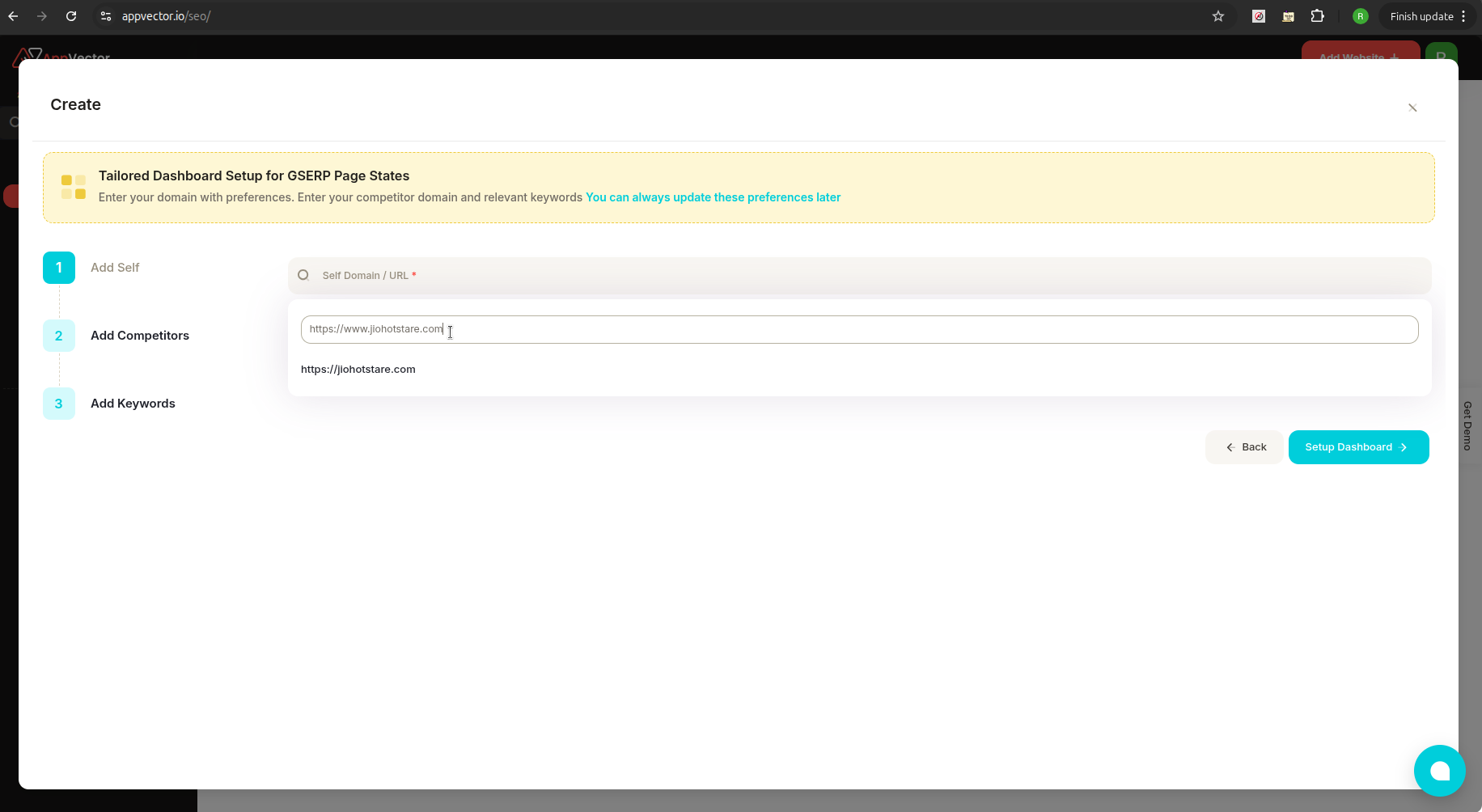
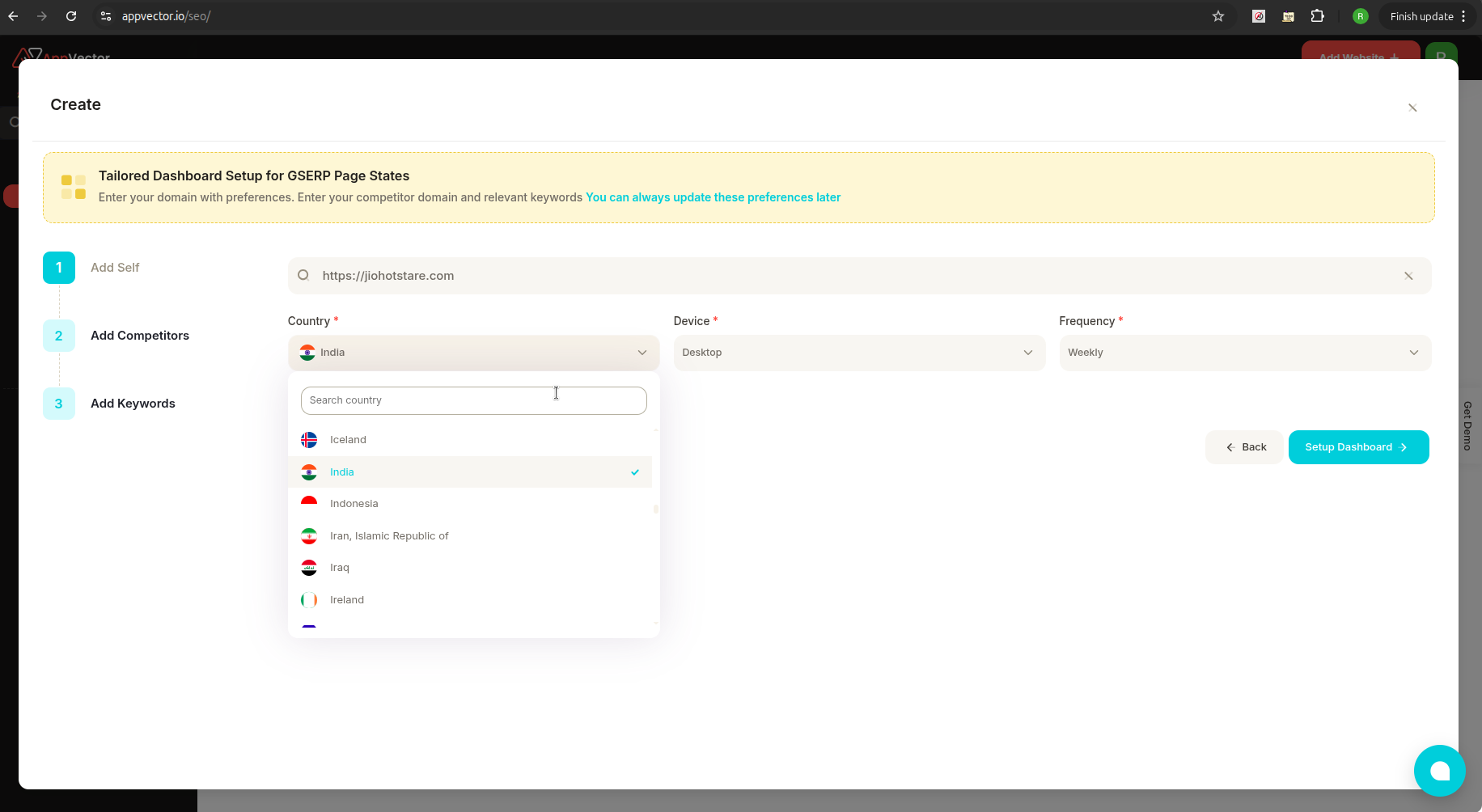
🧑💻 Step 1: Add Self (Your Website)
Configure your main site for tracking:
- Domain / URL: Enter your website (e.g.,
https://yourdomain.com). - Country: Choose your primary target country.
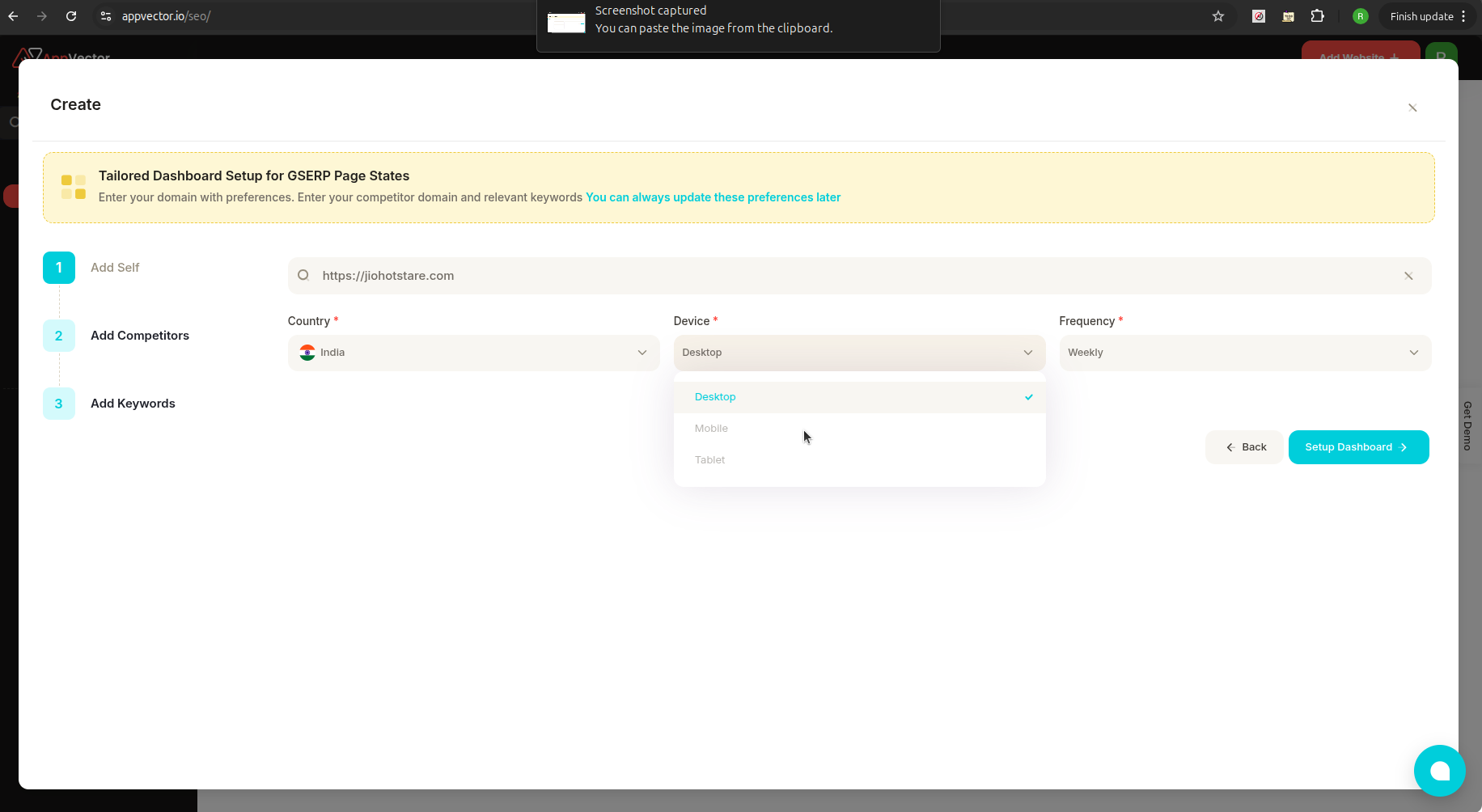
- Device: Select tracking device:
- Desktop
- Mobile
- Tablet
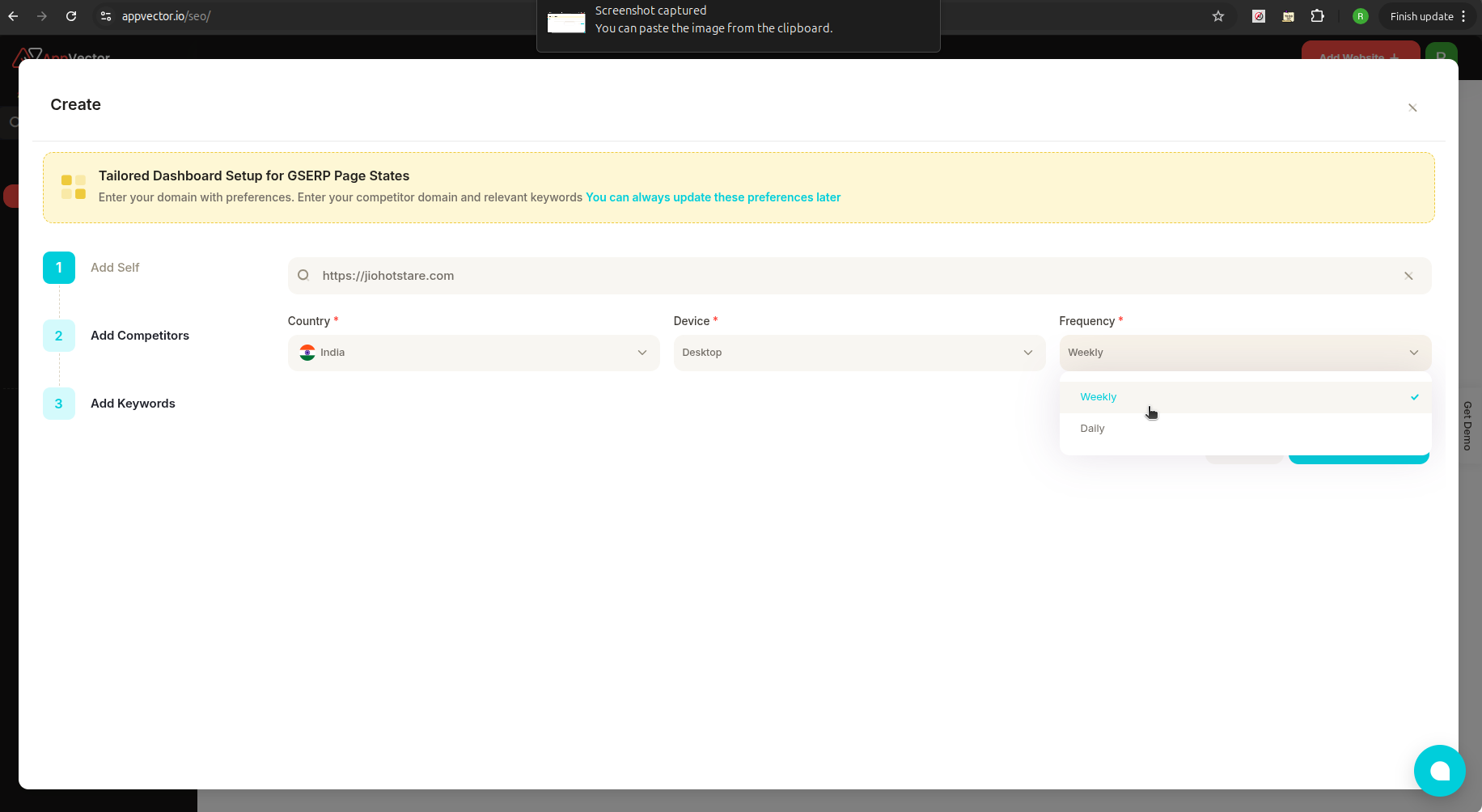
- Frequency: Choose how often SV checks rankings:
- Daily
- Weekly
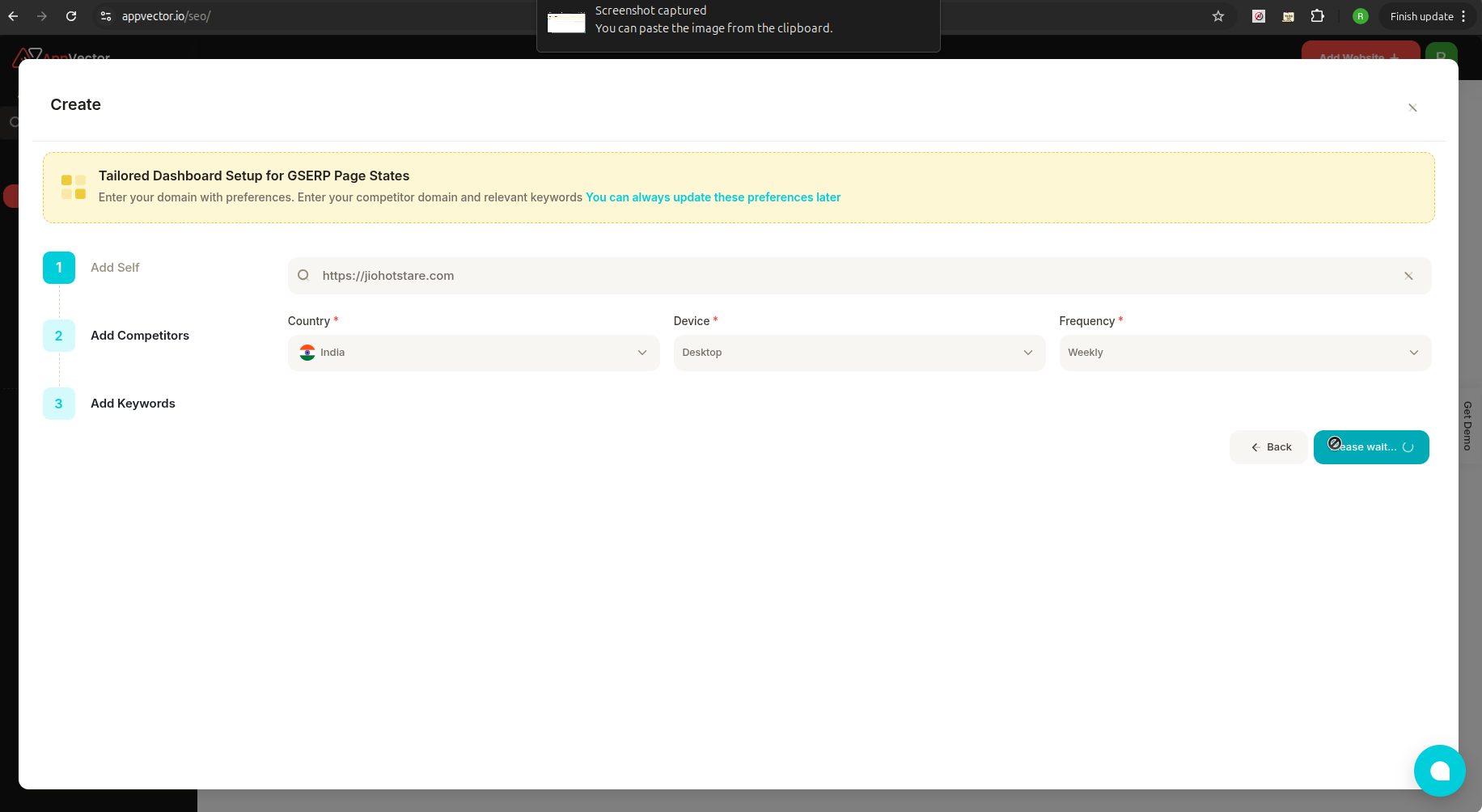
👉 Click “Setup Dashboard” to proceed.
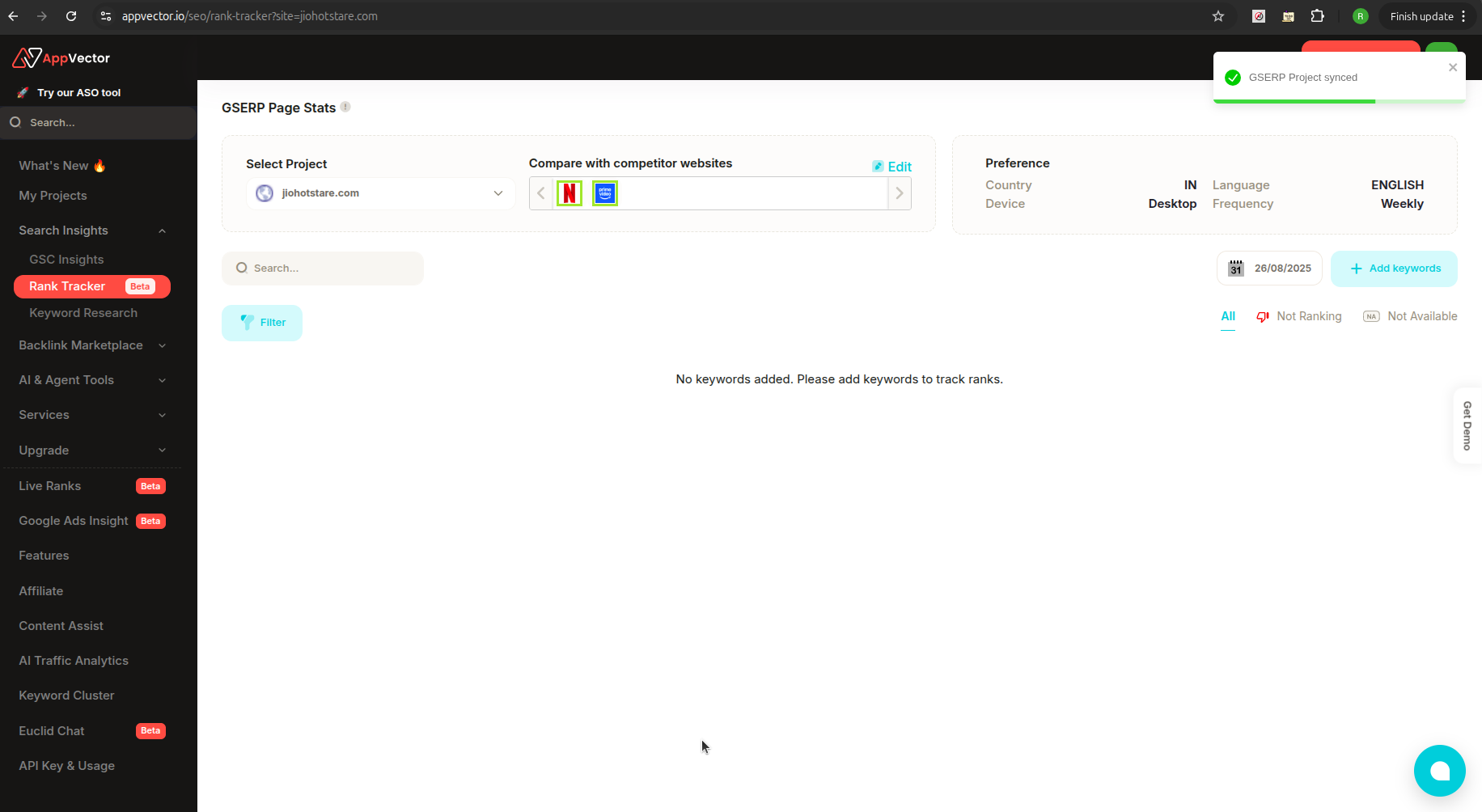
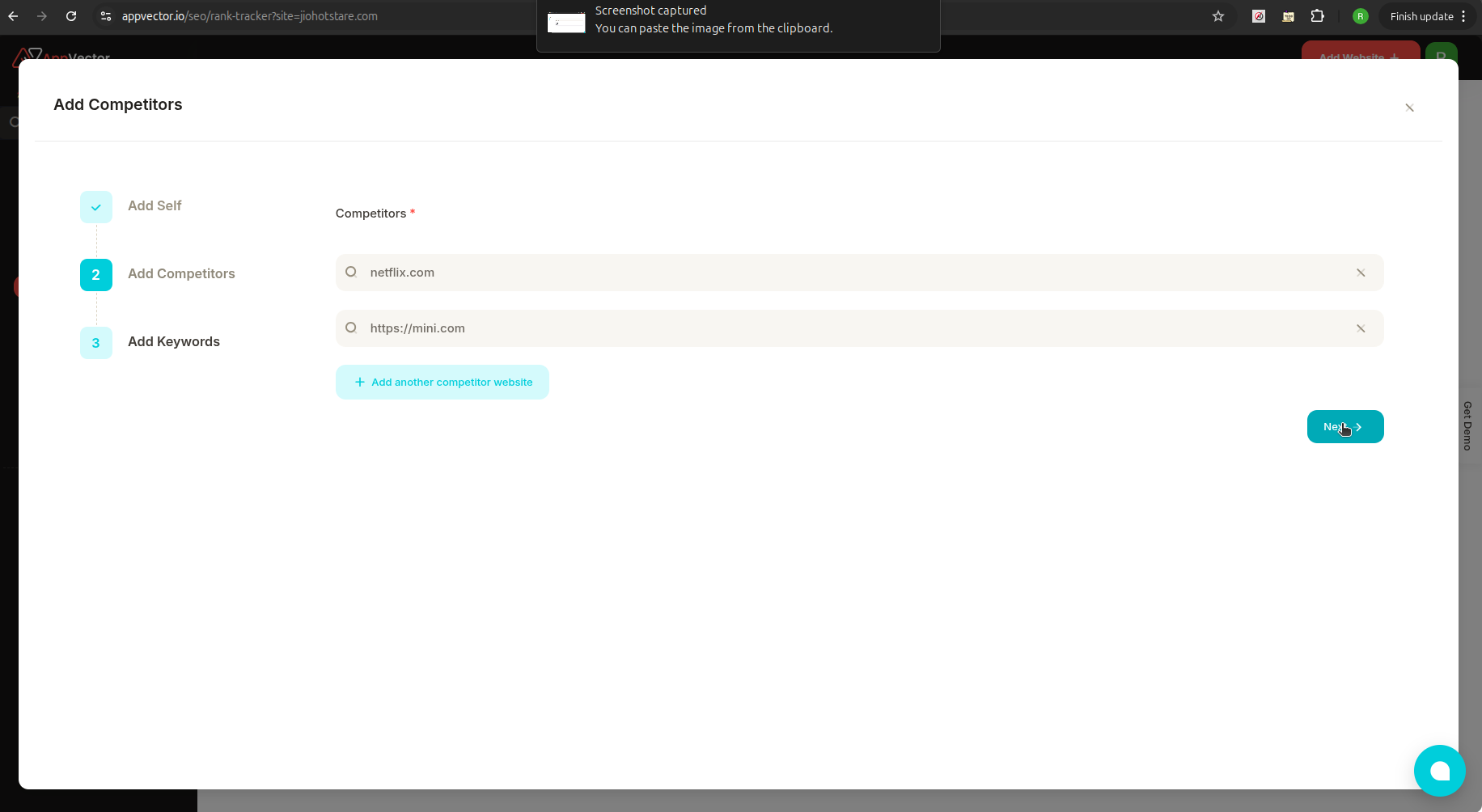
🆚 Step 2: Add Competitors
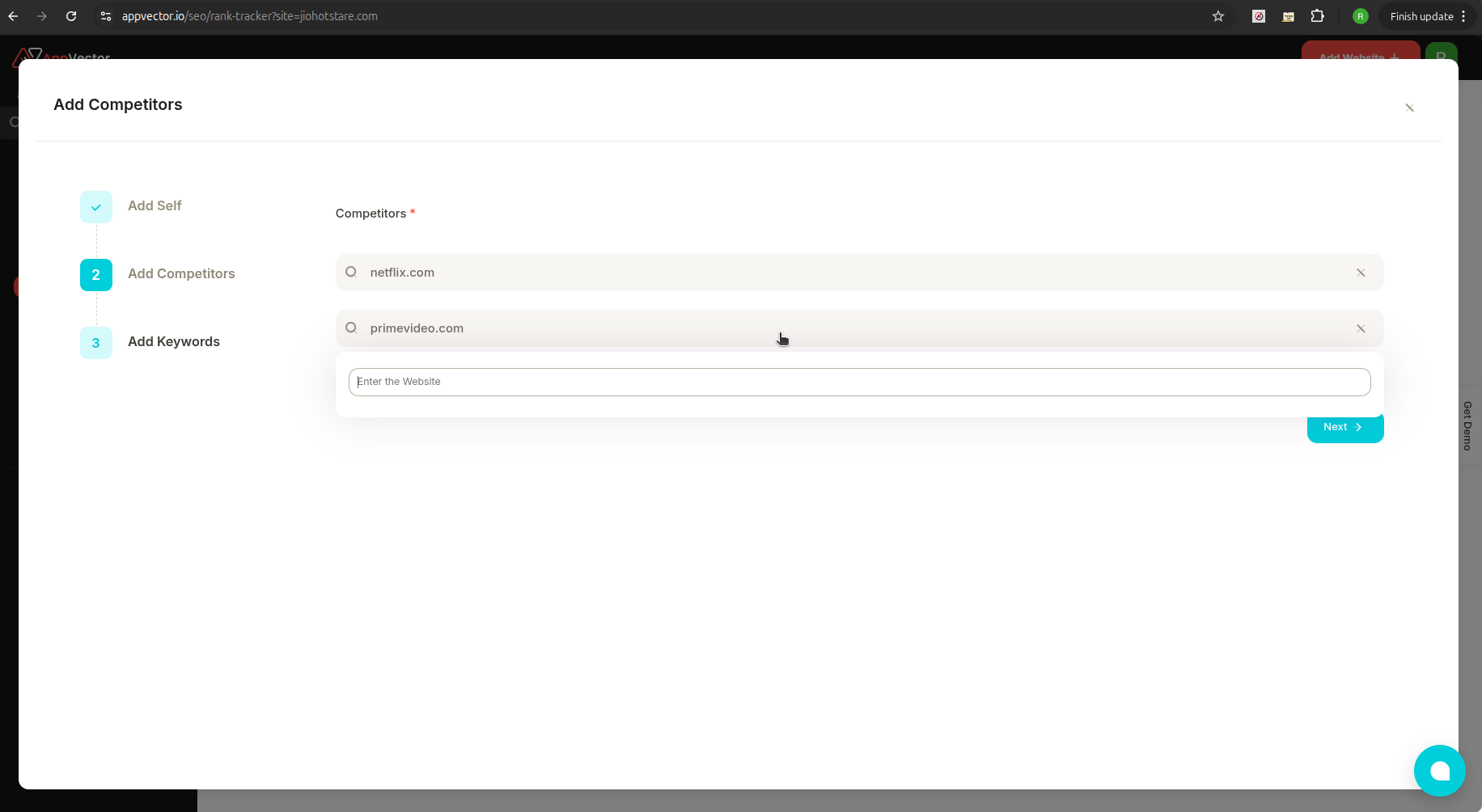
Compare your site with others in your niche:
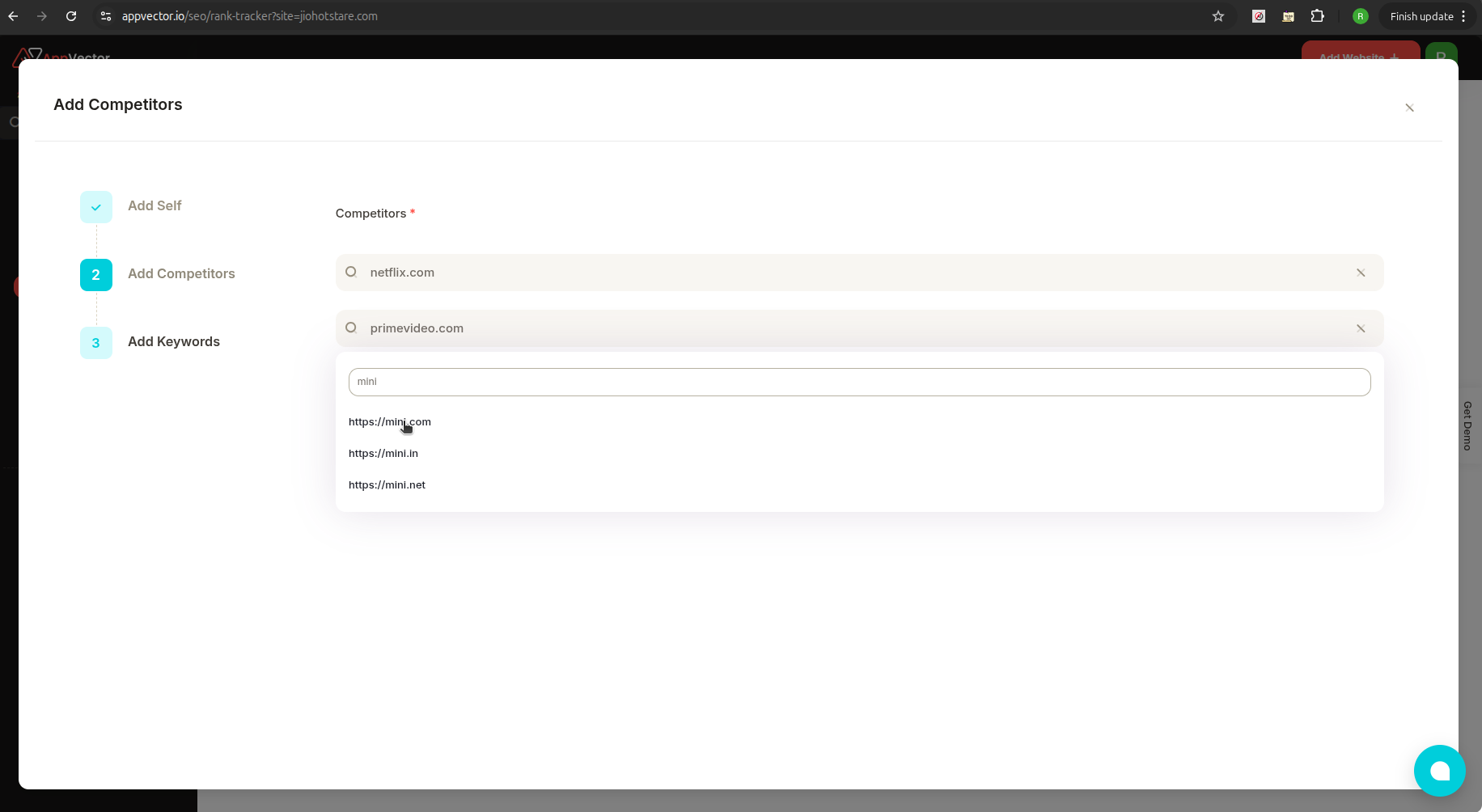
- Enter your competitor URLs one by one.
- You can add multiple competitor websites.
- Click “Next” to continue.
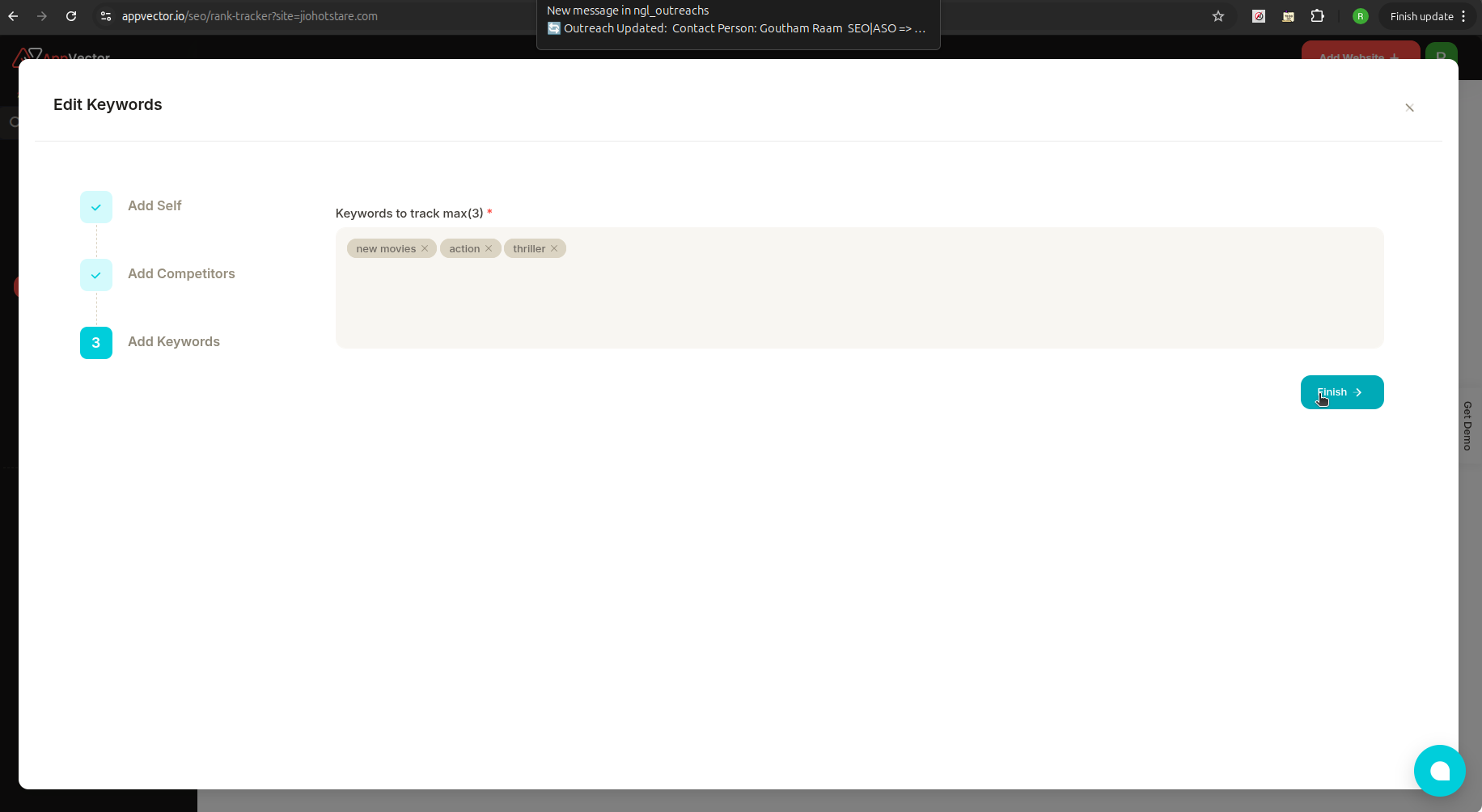
🏷️ c) Step 3: Add Keywords
Track important keywords related to your business:
- Type or paste multiple keywords into the input box.
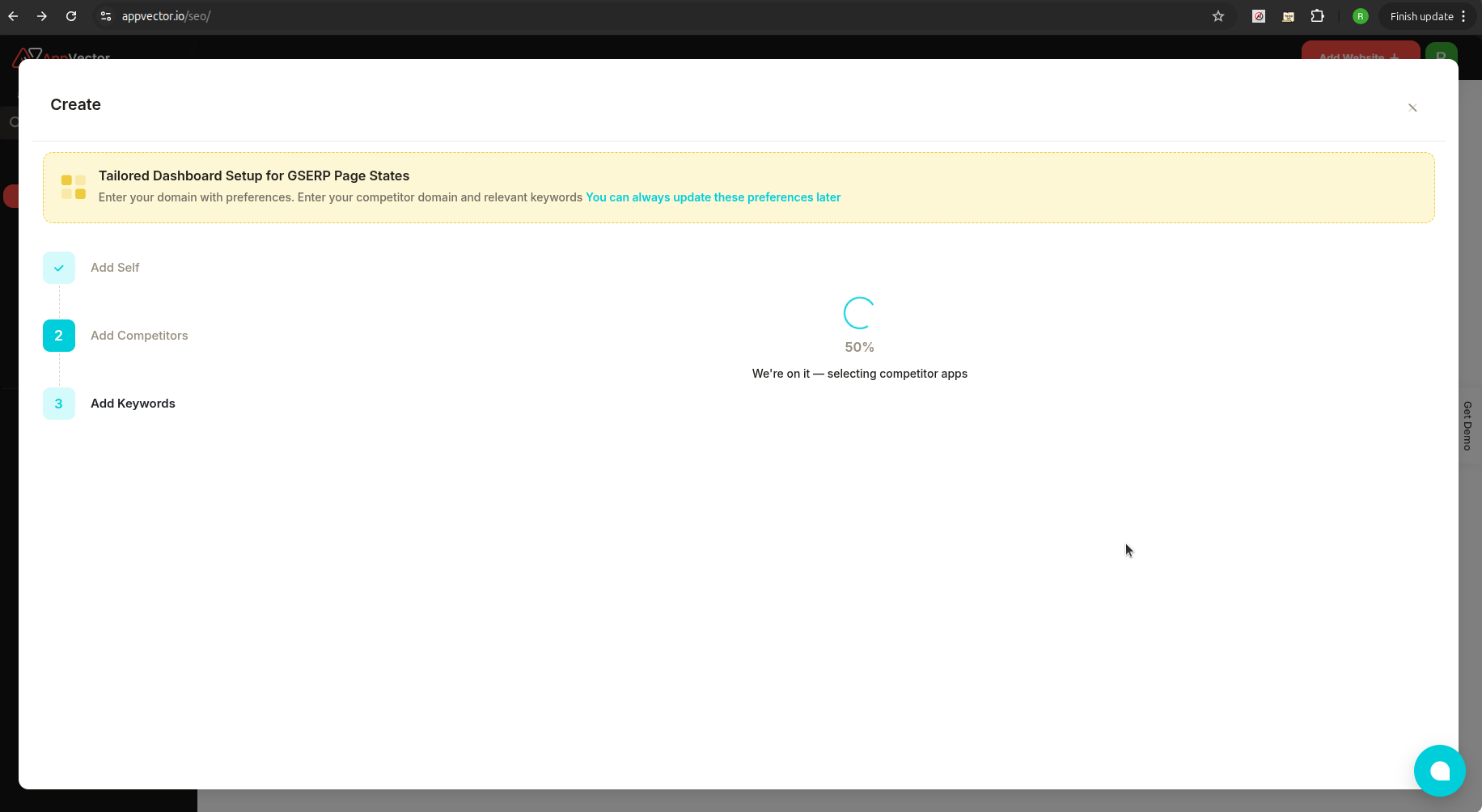
- Click “Finish” to complete setup.
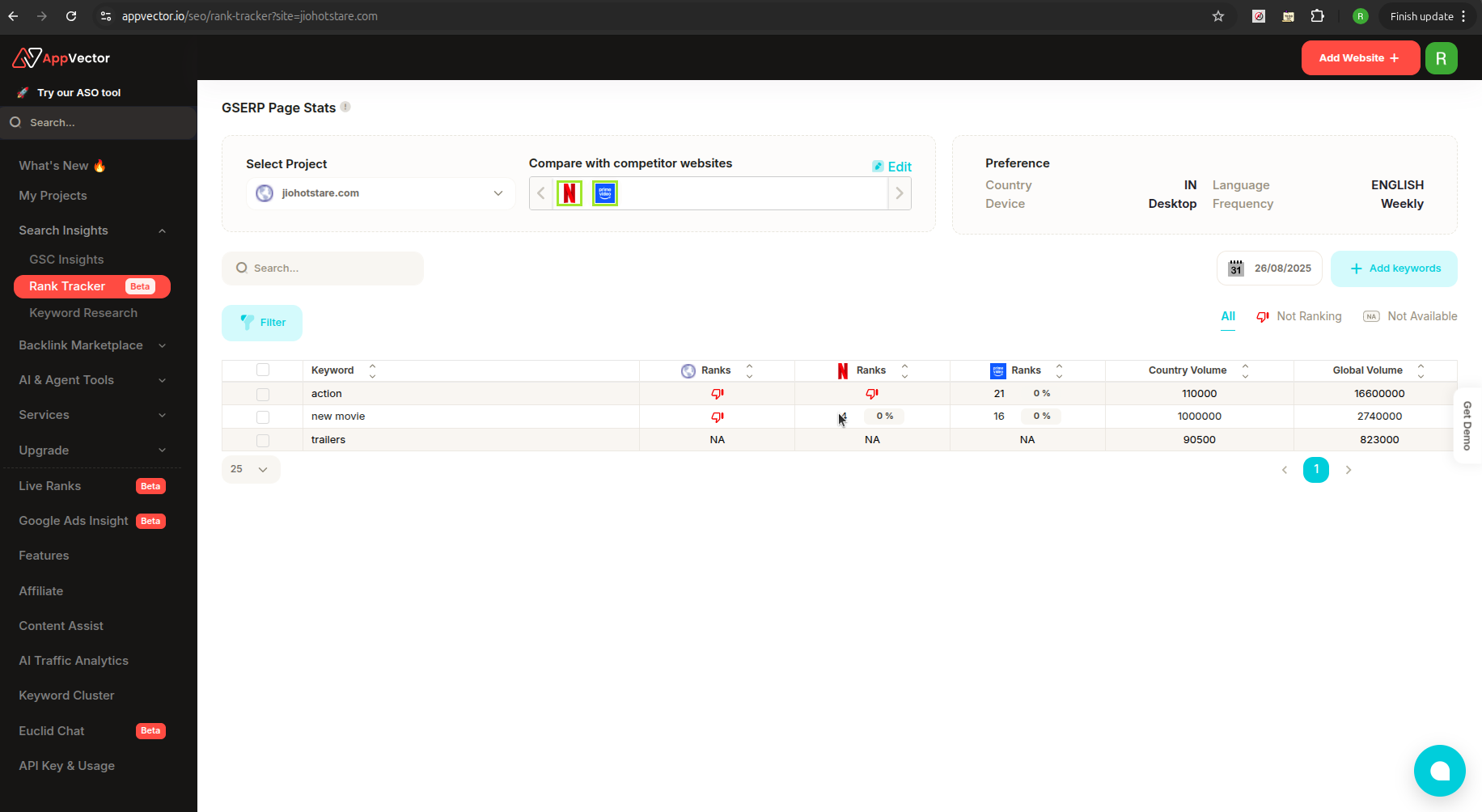
📊 3. Managing Your Project from the Dashboard
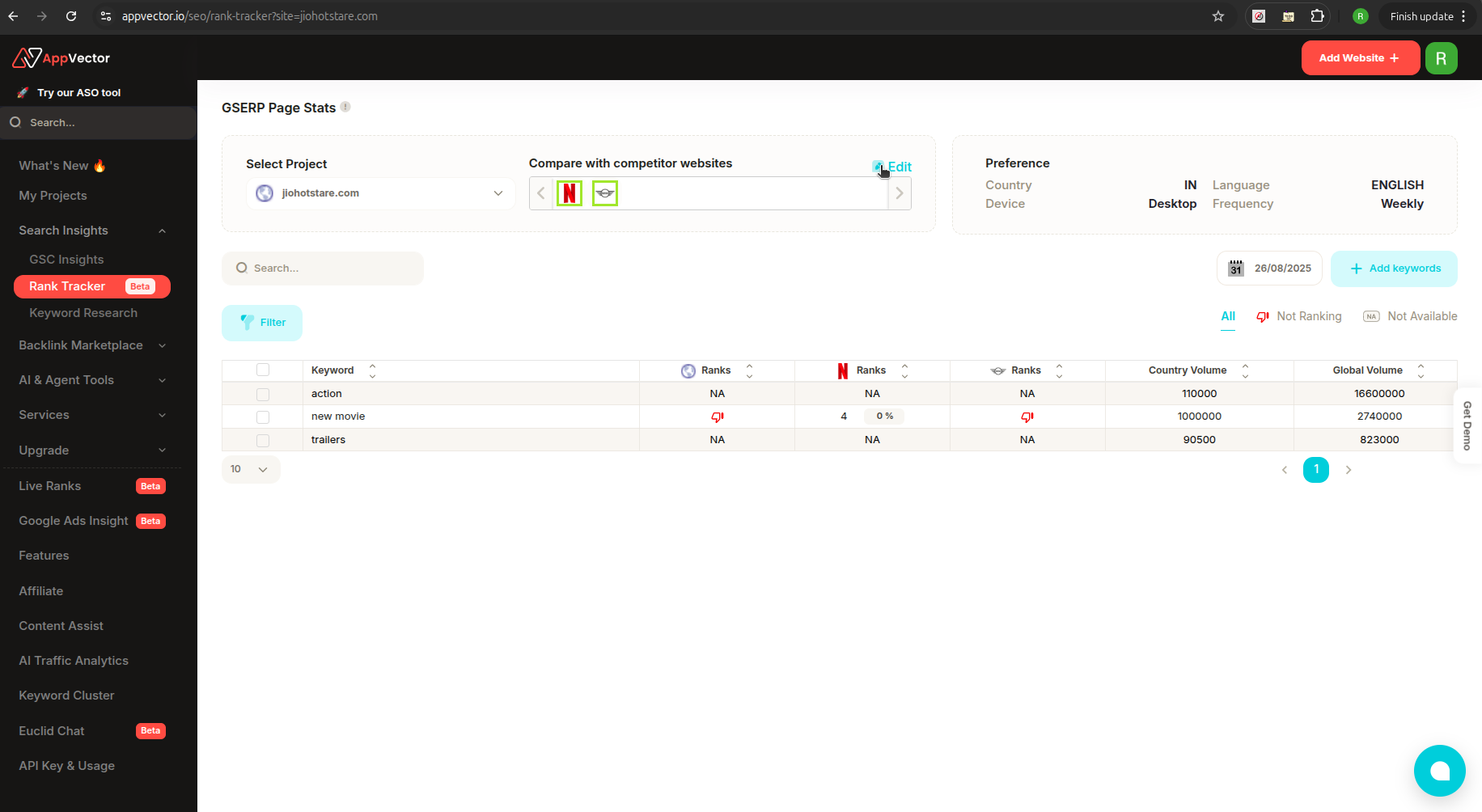
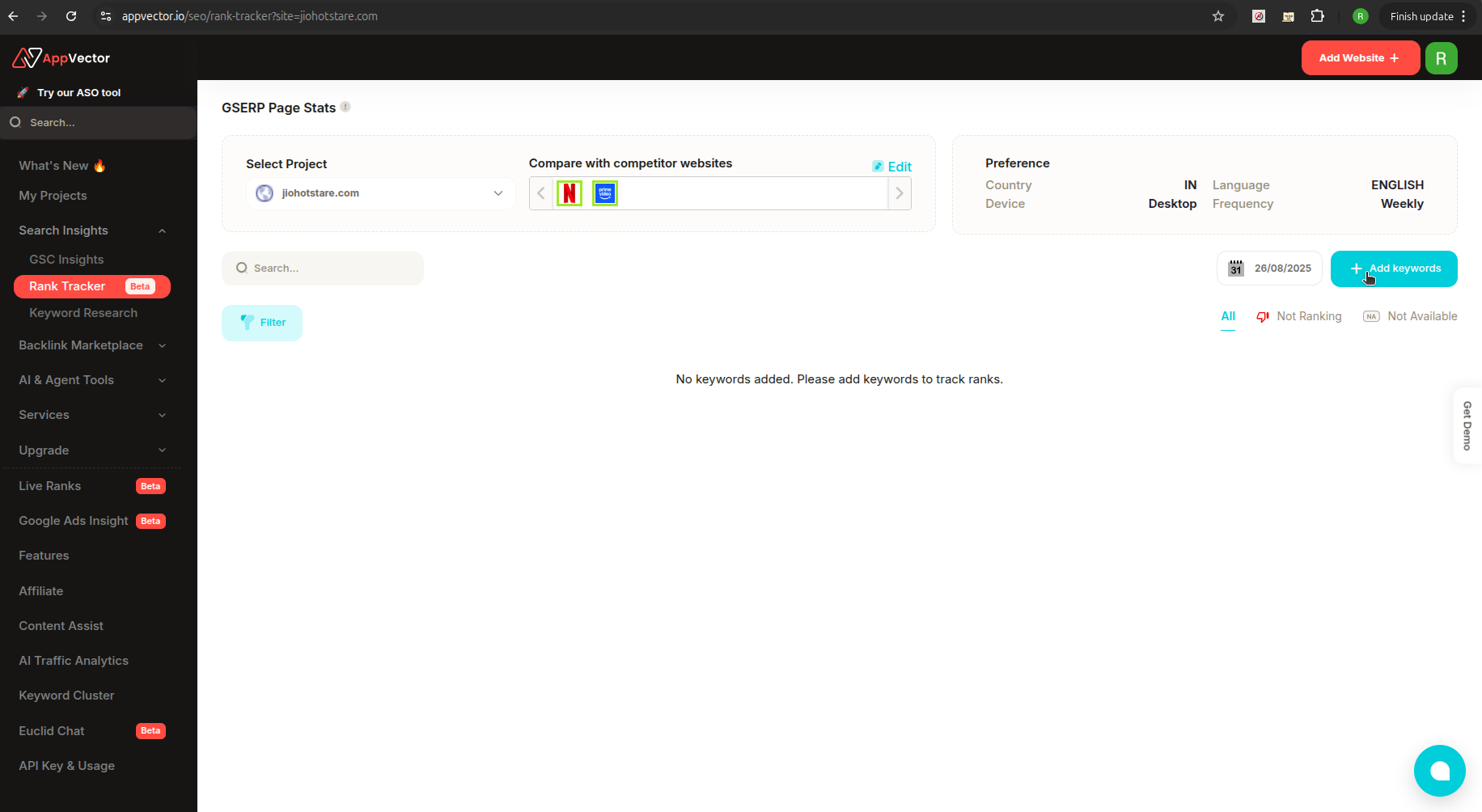
After setup, you'll land on the “GSERP Page Stats” dashboard, where you can monitor and manage everything.
➕ Add More Keywords
- Click “+ Add Keywords” to track additional keywords at any time.
✏️ Edit Competitors
- Use the “Edit” button to add/remove competitor websites.
📈 View Keyword Performance
- Dashboard shows a ranking table including:
- Keyword position for your site
- Positions of each keyword for all competitor websites
🆓 Free Plan Limit
⚠️ Note: In the free plan, keyword tracking is limited to 3 keywords.
To unlock higher limits and advanced features, consider upgrading to a paid plan.