App Profile
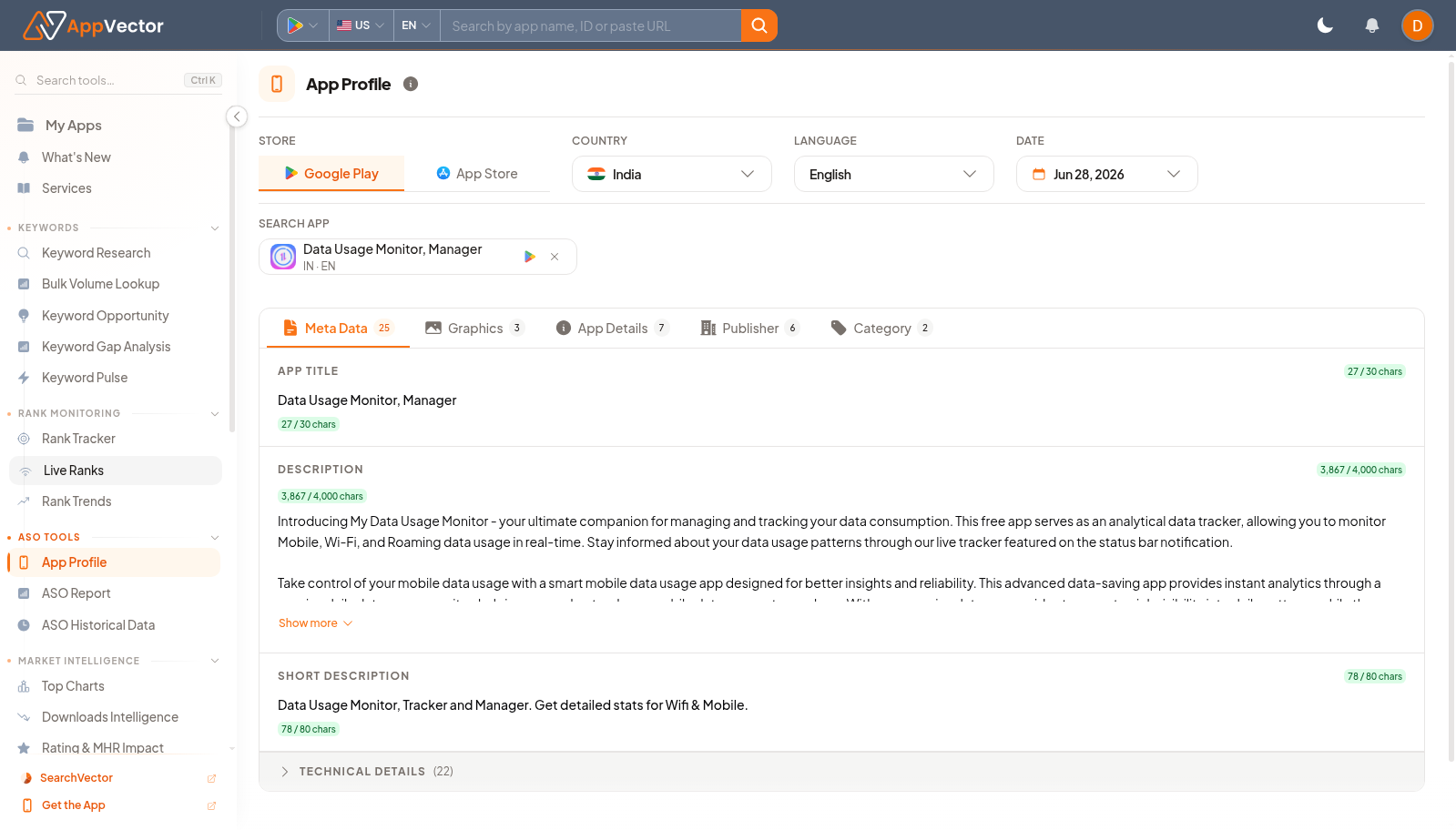
App Profile is the reference page for a selected app. It brings together listing metadata, graphics, app details, publisher information, and category context so you can confirm the current store state before planning ASO work.
When To Use It
Use App Profile when you need to:
- verify current title, descriptions, category, publisher, and listing assets.
- check whether the app context is correct before running ASO reports.
- review app profile sections before metadata or creative changes.
- compare store, country, and language views for the same app.
Before You Start
Prepare these inputs:
- Store: choose Google Play or App Store.
- Country and language: select the market and language to inspect.
- App: select the app, such as Data Usage Monitor when using safe internal examples.
- Date context: note the current verified date shown in the selector.
Work Through The Page
- Open App Profile from ASO Tools.
- Choose the store, country, and language.
- Select the app you want to review.
- Use the section tabs such as Meta Data, Graphics, App Details, Publisher, and Category.
- Use Show more when a section is collapsed and you need the full field content.
Read The Results
Use the tabs as a listing checklist. Meta Data covers text fields, Graphics covers visible creative assets, App Details and Publisher verify store identity, and Category confirms where the app is positioned. A mismatch here should be fixed before drawing conclusions from reports.
Decide What To Do Next
- Open ASO Report after confirming the app profile.
- Open Store Listing when you need to edit listing content.
- Open Historical Data to compare current metadata against previous versions.
- Use Keyword Research when metadata gaps suggest new keyword work.
Tips
- Check app, market, and language before reviewing metadata.
- Use App Profile as the source of truth when another page seems to show unexpected app context.