Apple Search Ads
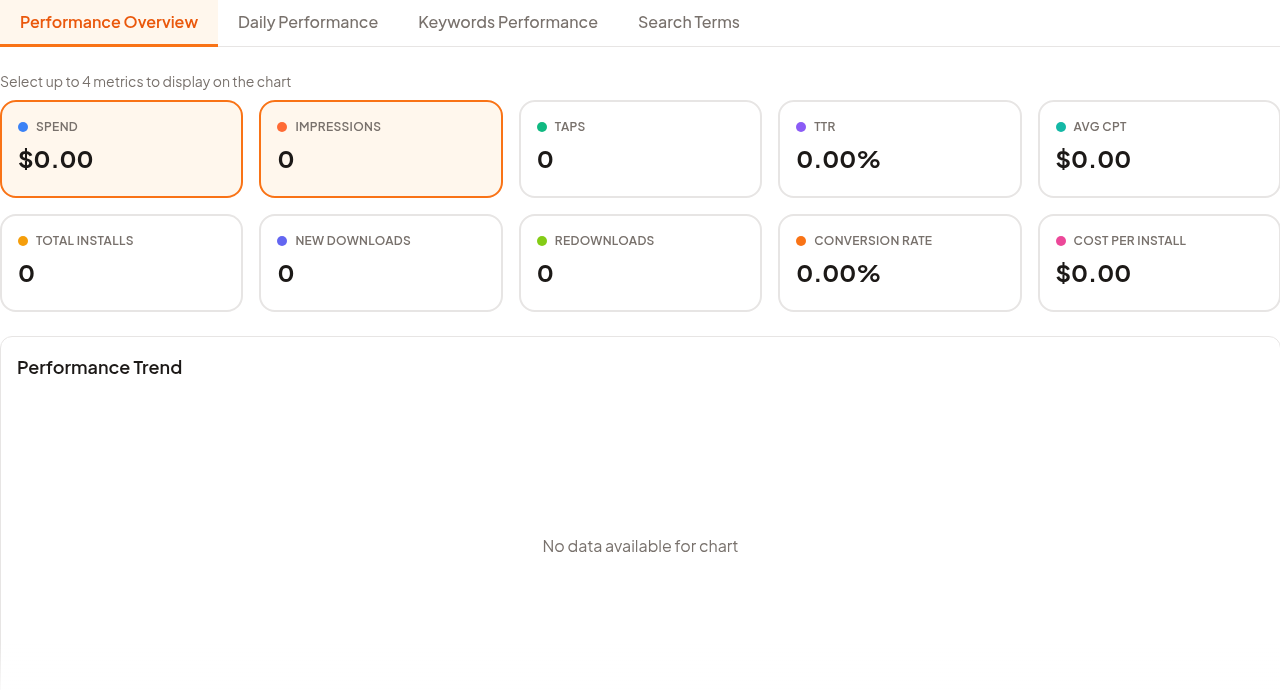
Apple Search Ads is the reporting page for connected ASA accounts. It separates account, campaign, date range, and tab context so you can inspect spend, impressions, taps, installs, conversion rate, and search-term performance.
When To Use It
Use Apple Search Ads when you need to:
- monitor Apple Search Ads account and campaign performance.
- compare daily performance with keyword and search-term performance.
- check spend, impressions, taps, installs, conversion rate, and cost metrics.
- decide which campaigns or terms need optimization.
Before You Start
Prepare these inputs:
- ASA account: connect the account through Manage Account if needed.
- Organization: choose the organization selector carefully.
- Campaign scope: choose All Campaigns or a narrower campaign.
- Date range: select the reporting window, such as Last 28 days.
Work Through The Page
- Open Search Ads Report from Apple Console.
- Confirm the organization selector and campaign selector.
- Set the date range.
- Start with Performance Overview.
- Switch to Daily Performance, Keywords Performance, or Search Terms for deeper diagnosis.
Read The Results
Use the metric cards to understand overall account movement, then move to the tab that explains why it changed. Daily Performance shows timing, Keywords Performance shows bidding and keyword quality, and Search Terms shows actual query behavior.
Decide What To Do Next
- Pause or adjust weak terms after reviewing search-term quality.
- Use ASA Bulk Editor for grouped campaign changes.
- Use ASA Bulk Campaign Creator when new campaign structures are needed.
- Compare ASA changes with App Store listing and keyword work before judging results.
Tips
- Keep organization and campaign selectors consistent when comparing periods.
- Use search terms for pruning and keyword expansion, not only top-level spend cards.