Appvector Guide: Adding and Tracking Keywords
📍 1. Navigating to the Keyword Rank Tracker
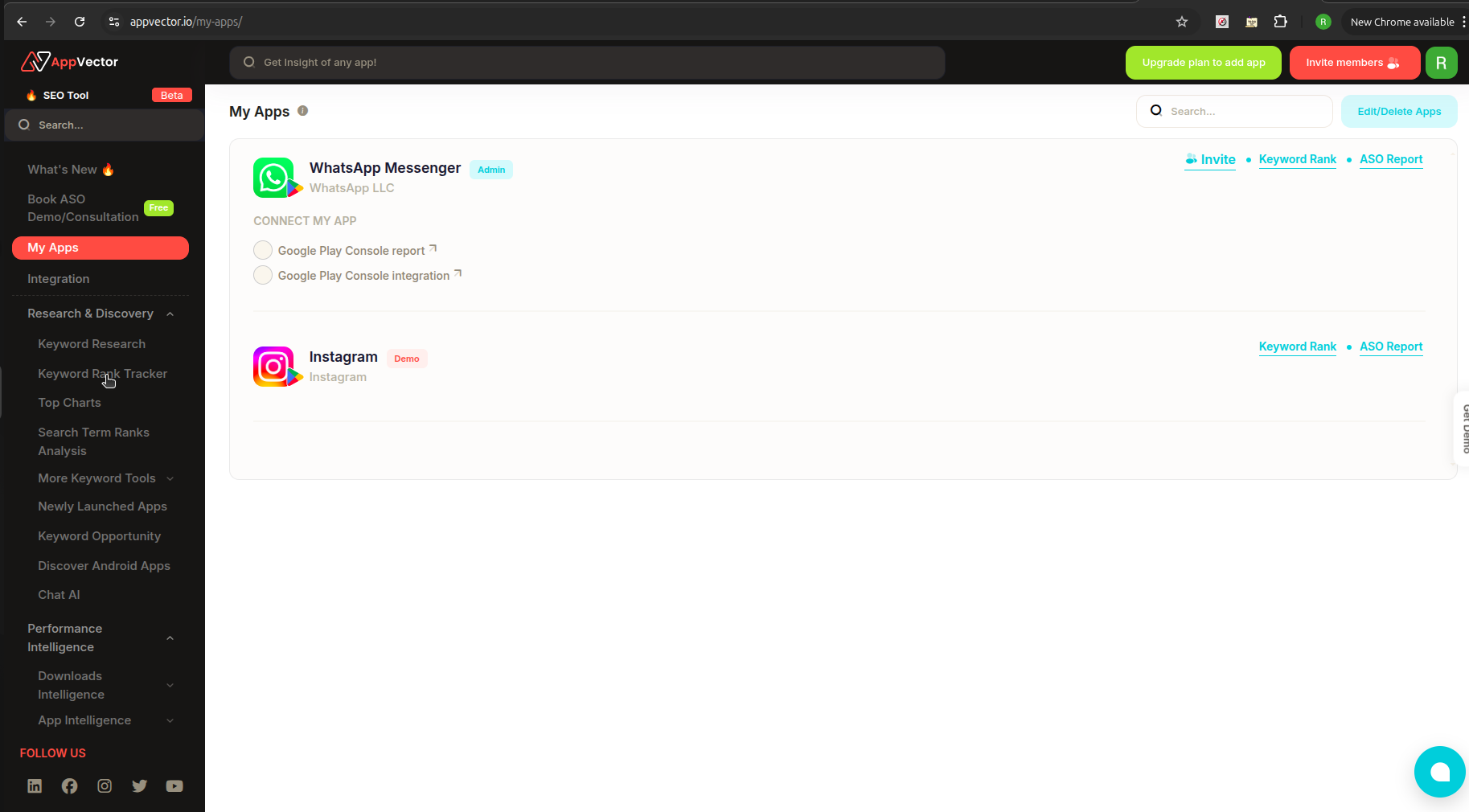
To start tracking keywords, follow these steps:
🧭 Steps:
- Go to your Appvector dashboard after logging in.
- In the left-hand menu, locate and click on “Research & Discovery”.
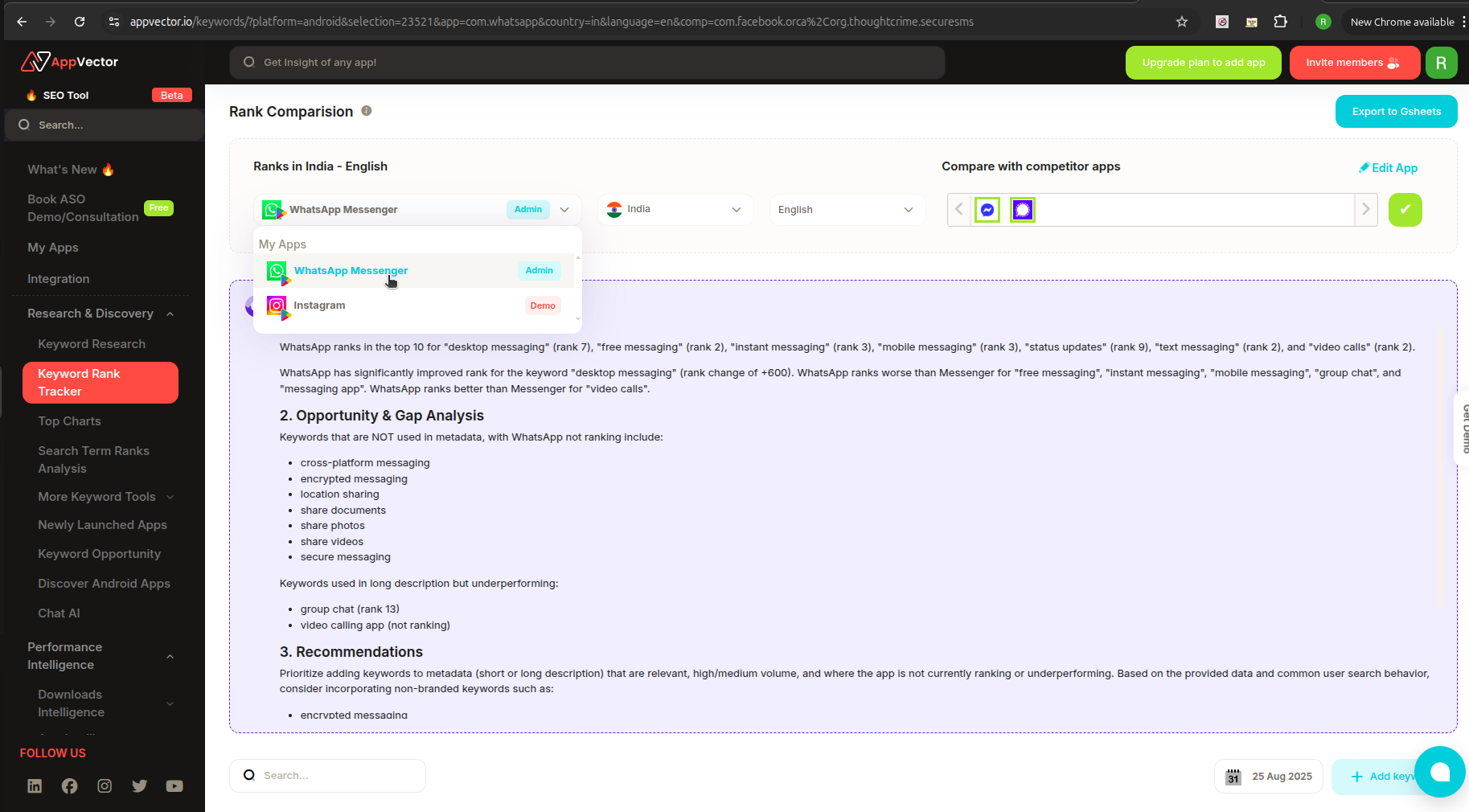
- Select “Keyword Rank Tracker” to open the keyword tracking interface.
➕ 2. Adding New Keywords
The “+ Add Keywords” button lets you discover and add keywords using 3 methods.
🪄 Step-by-step:
- In the Keyword Rank Tracker view, click the "+ Add Keywords" button in the top-right corner.
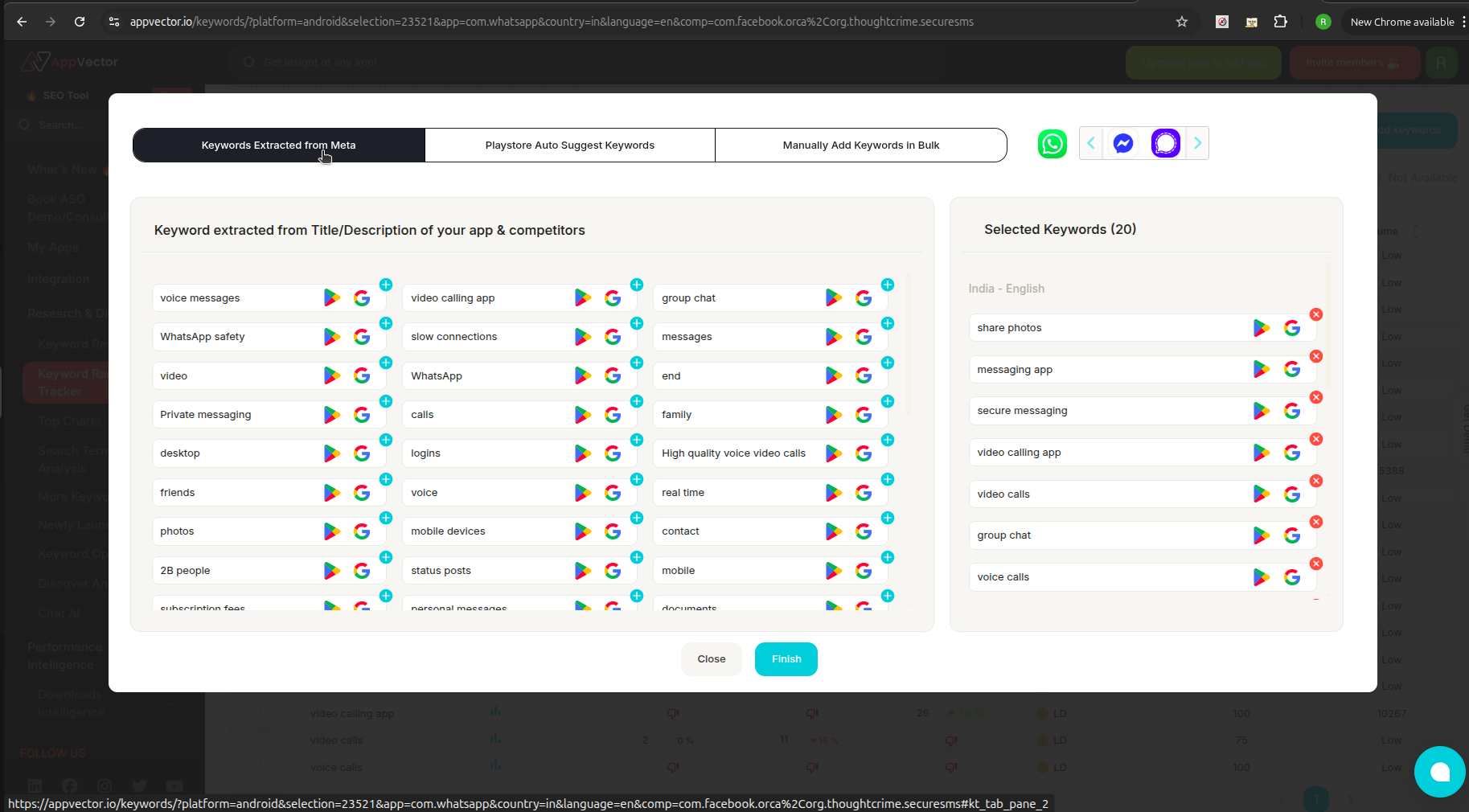
- A modal window will appear with 3 tabs:
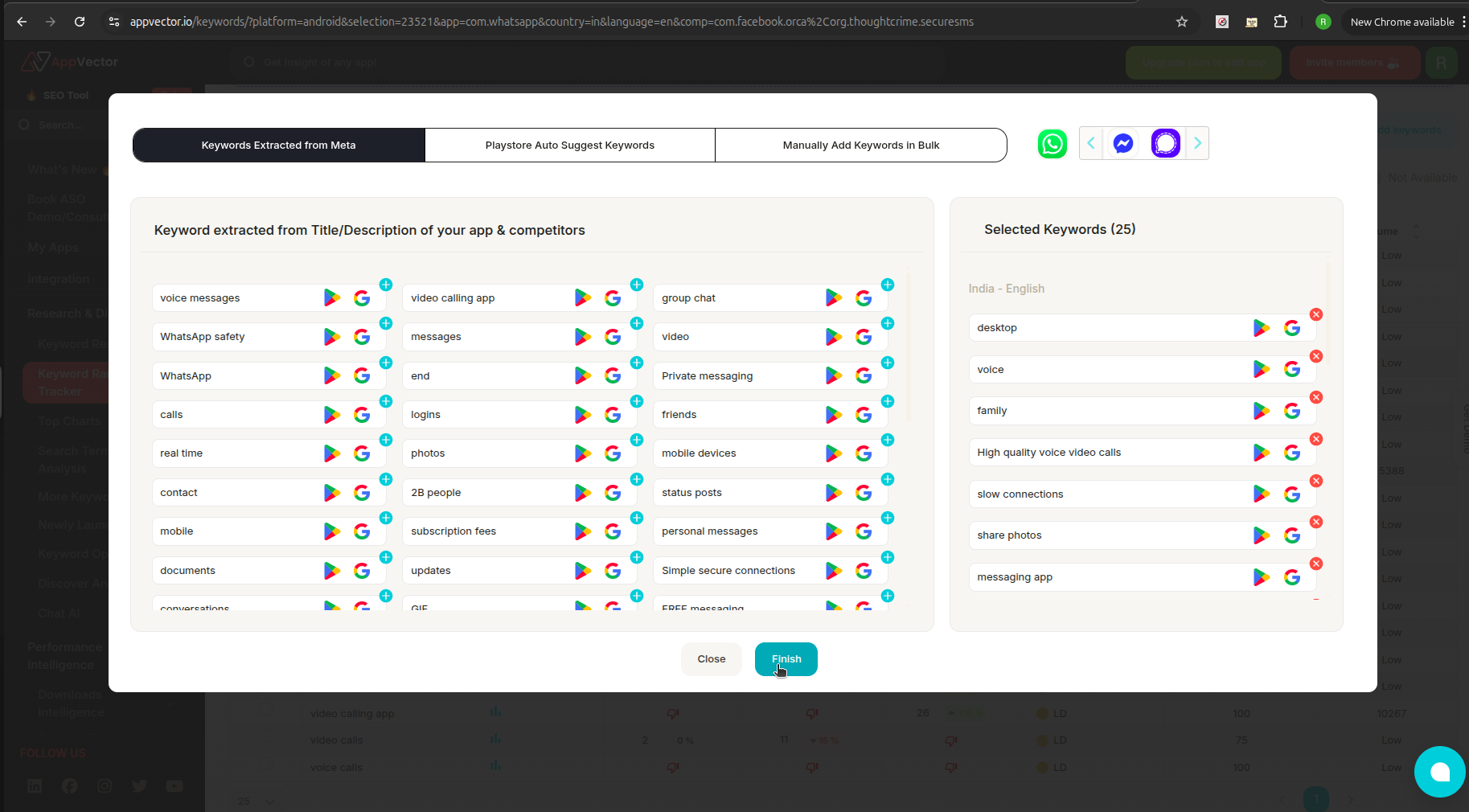
🔍 Keywords Extracted from Meta
Automatically pulled from your app’s title, description, and competitor metadata.
- Simply click the keywords to move them to the “Selected Keywords” list on the right.
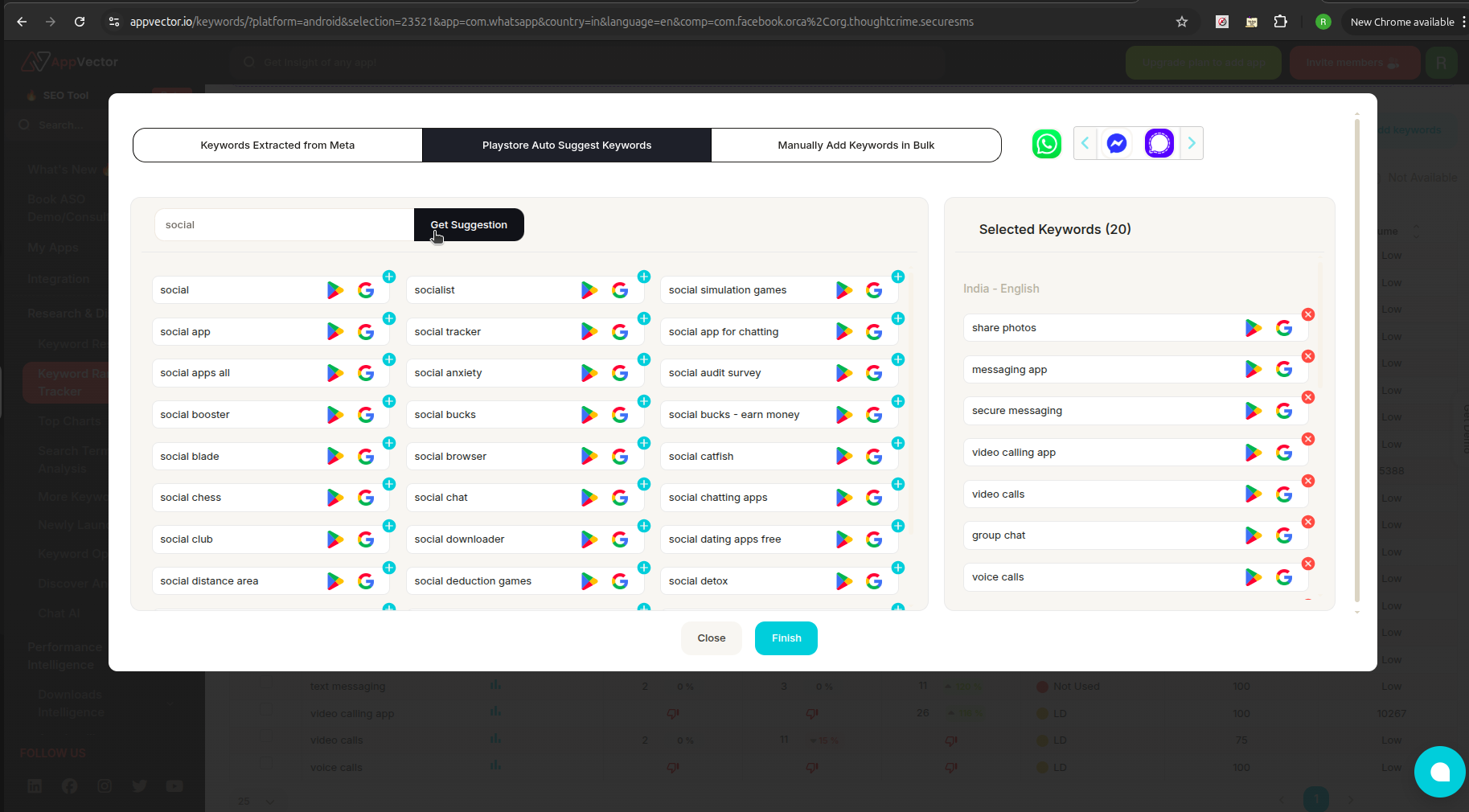
🤖 Play Store Auto Suggest Keywords
Great for finding long-tail keywords and real user search phrases.
- Enter a seed keyword into the input box.
- Click “Get Suggestion” to fetch related keywords.
- Click on keywords to add them to your list.
✍️ Manually Add Keywords in Bulk
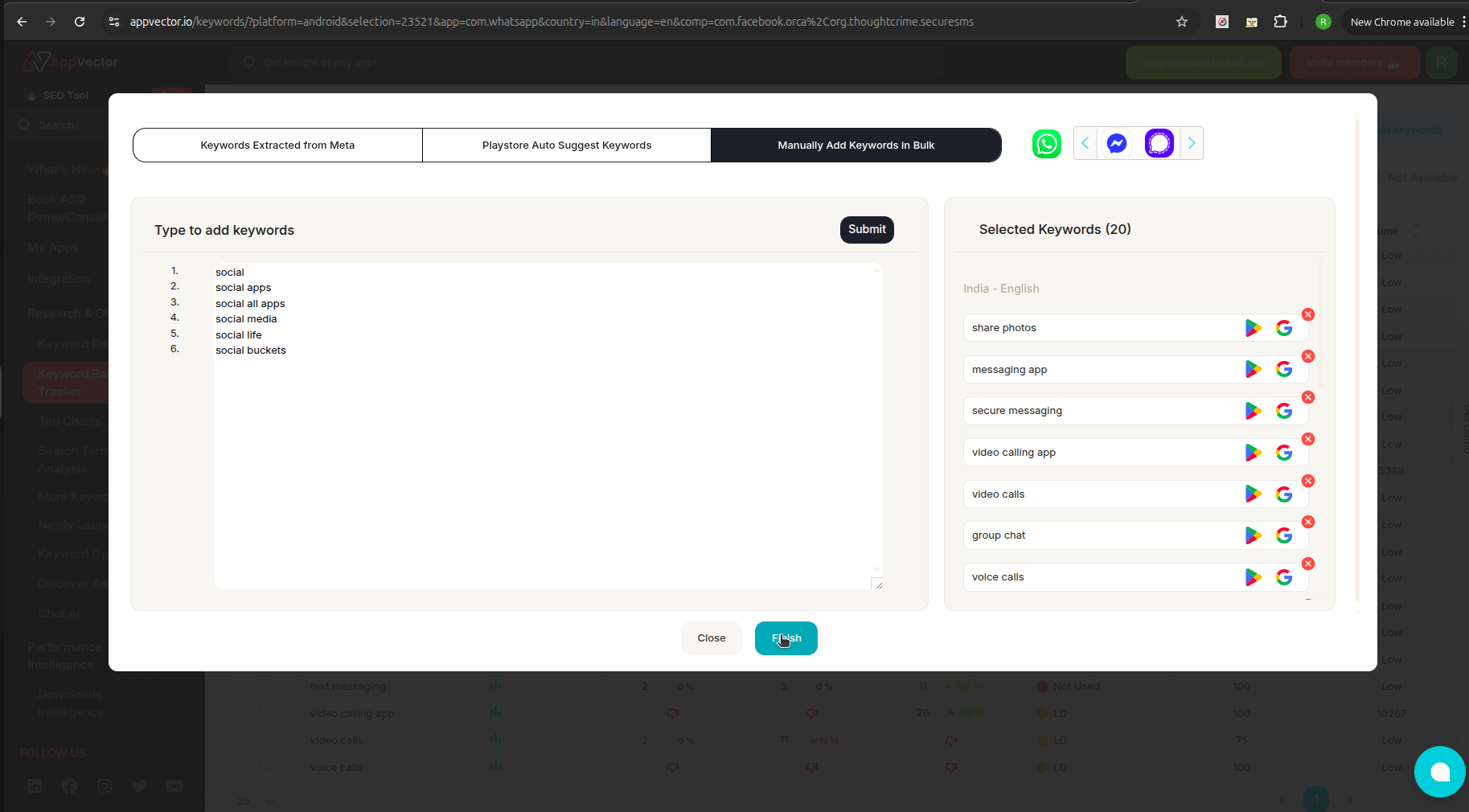
Perfect if you already have a keyword list.
- Paste or type multiple keywords in the text box (one per line).
- Click “Submit” to add them to the Selected Keywords list.
✅ Finalizing:
- Review all selected keywords in the "Selected Keywords" list.
- Click “Finish” to add them to your tracker.
- Note: In the free plan, you can add a maximum of 25 keywords. To track more, you’ll need to upgrade to a paid plan.
📊 3. Managing and Analyzing Keywords
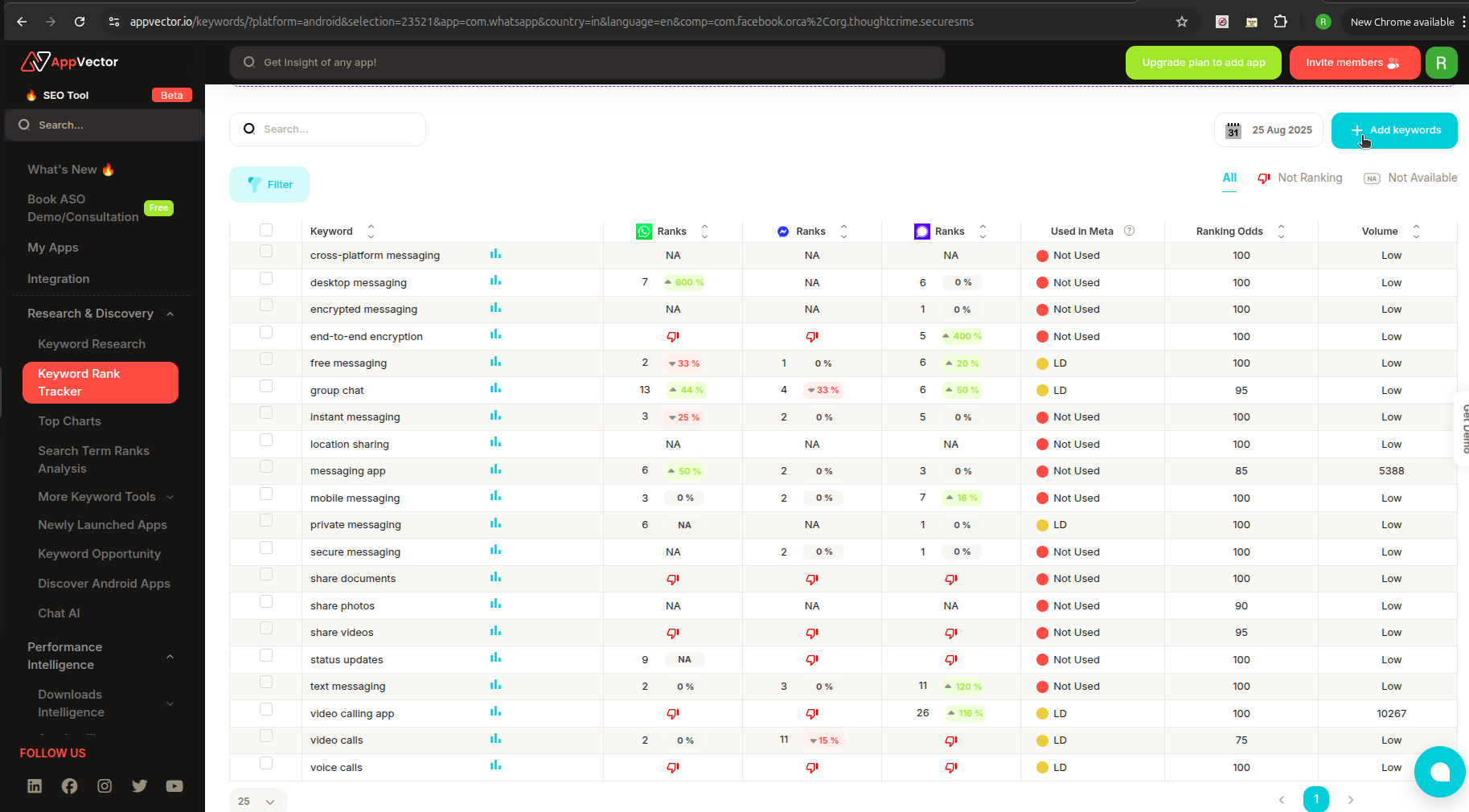
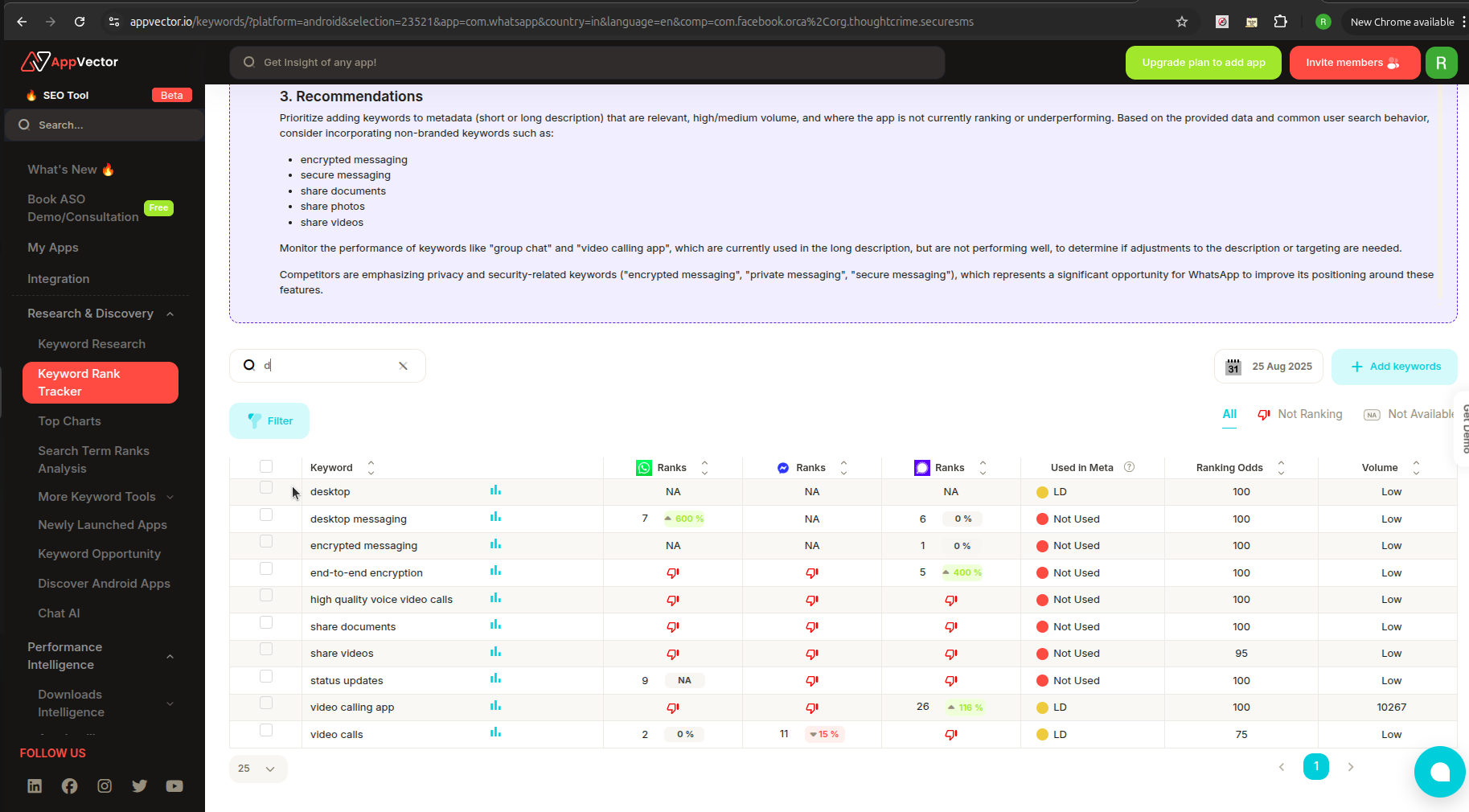
Once added, keywords are visible in the Keyword Rank Tracker view with several important insights.
📋 Metrics Shown:
- Ranks – Your app's current rank for the keyword.
- Used in Meta – Whether the keyword is found in your app metadata.
- Ranking Odds – Likelihood of your app ranking for this keyword.
- Volume – Estimated search volume for the keyword.
🧰 Tools for Better Insights:
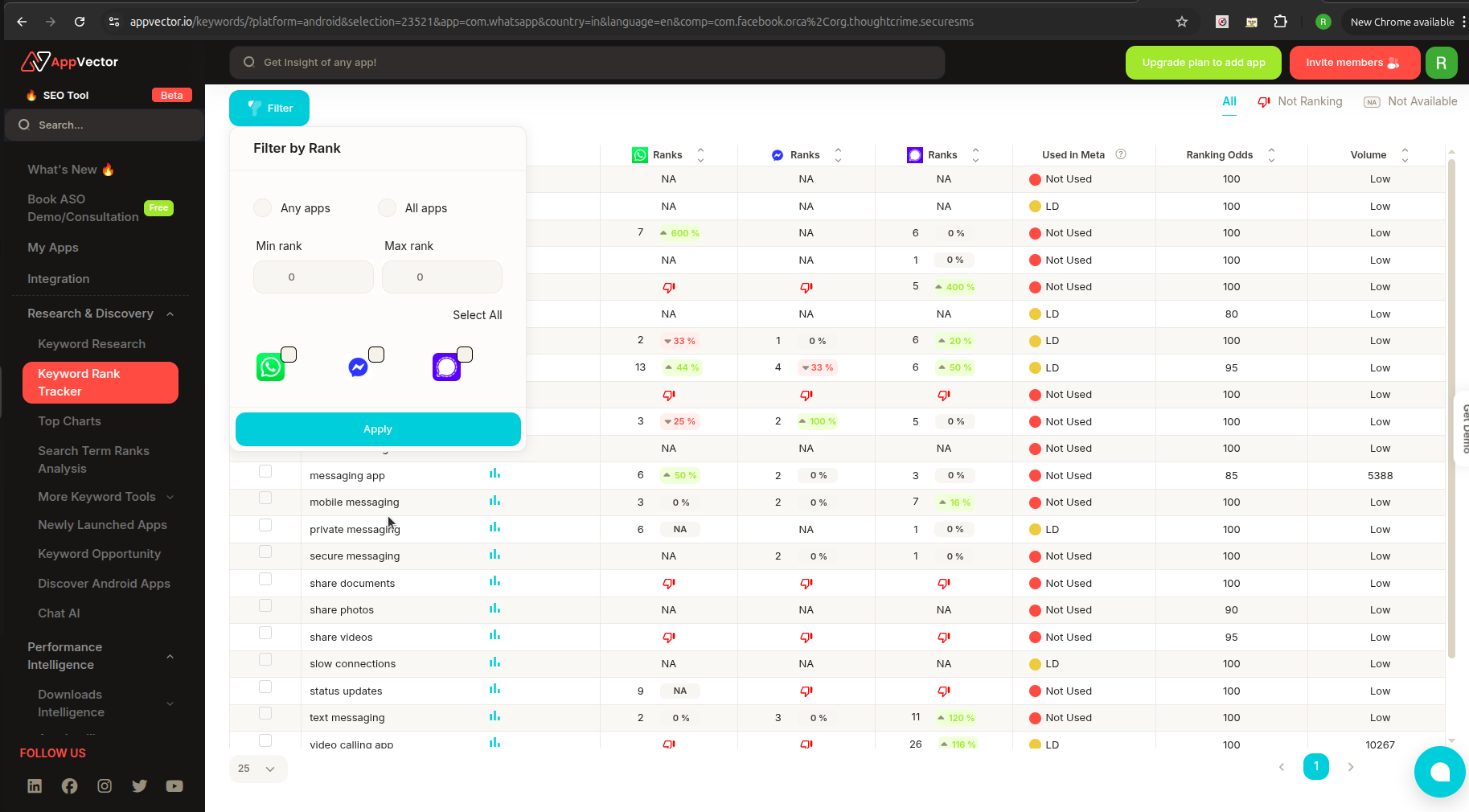
🔎 Filtering:
- Click “Filter” to sort keywords by rank or performance.
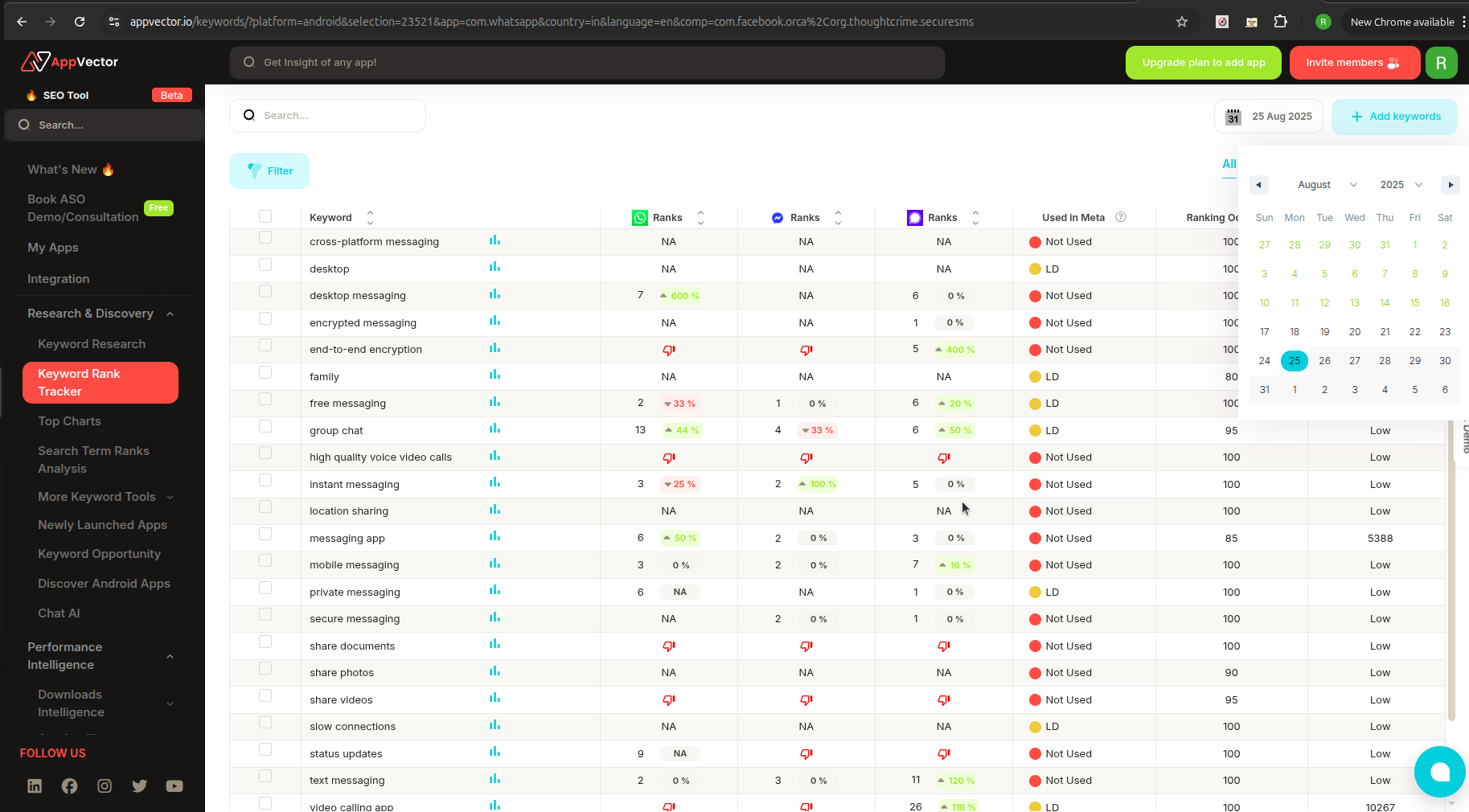
🗓️ Date Picker:
- Located at the top-right.
- Lets you analyze historical keyword performance.
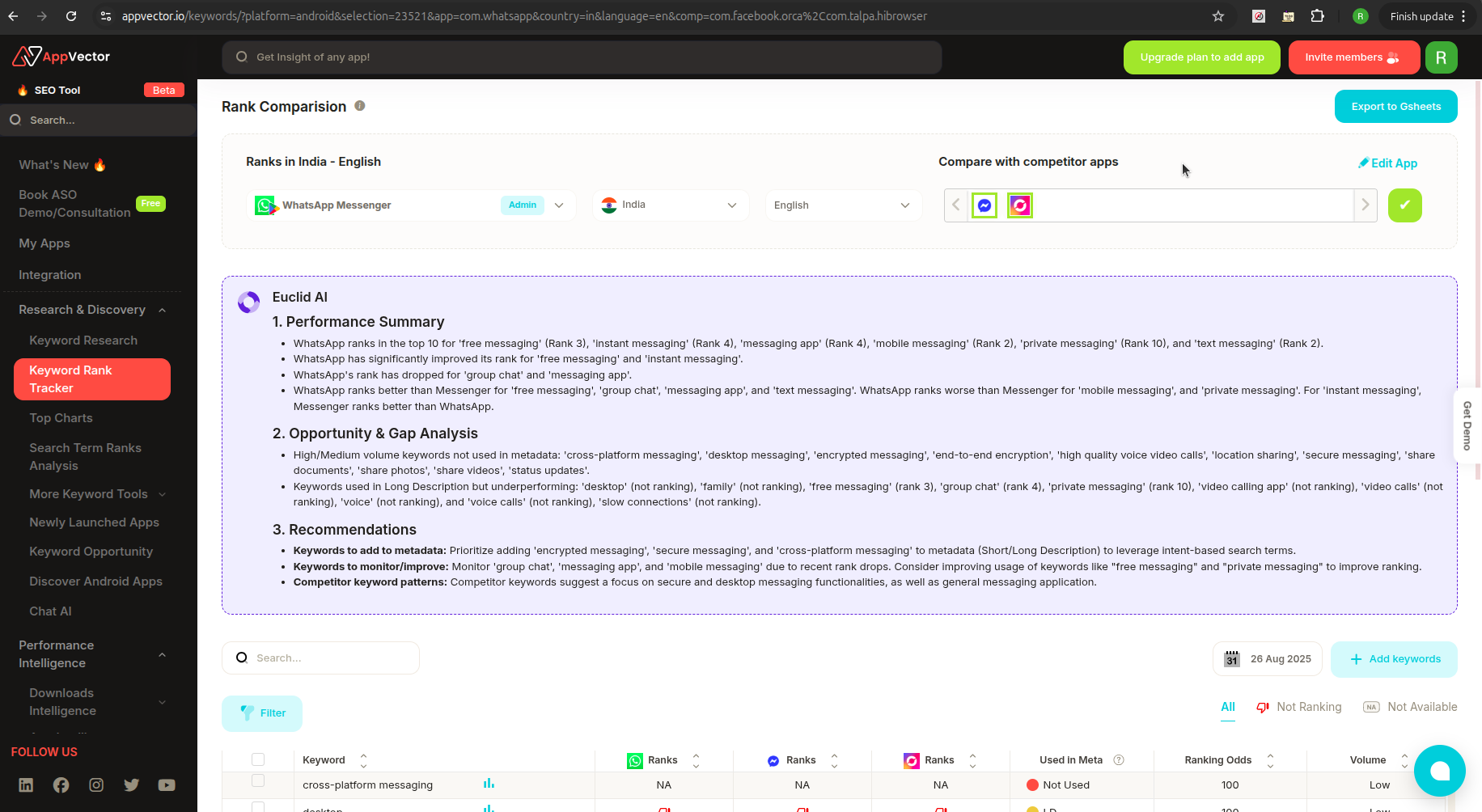
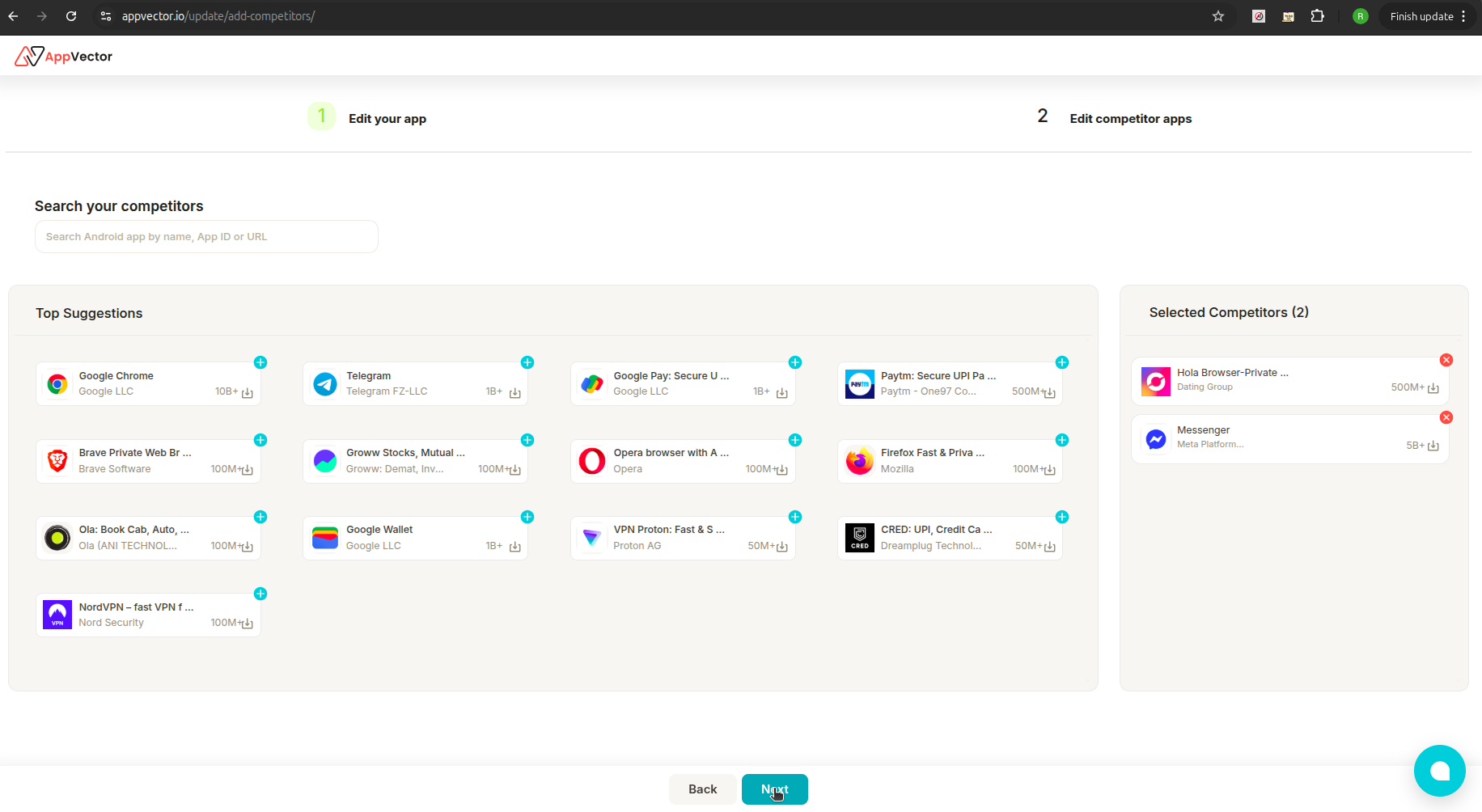
🆚 Competitor Tracking:
- Use the competitor app dropdown to switch and compare how your competitors are ranking for the same keywords.
✅ Summary
With Appvector's Keyword Rank Tracker, you can:
- Discover high-potential keywords
- Analyze and monitor ranking changes
- Compare keyword visibility with competitors
- Strengthen your ASO strategy using data-driven insights