Dashboard
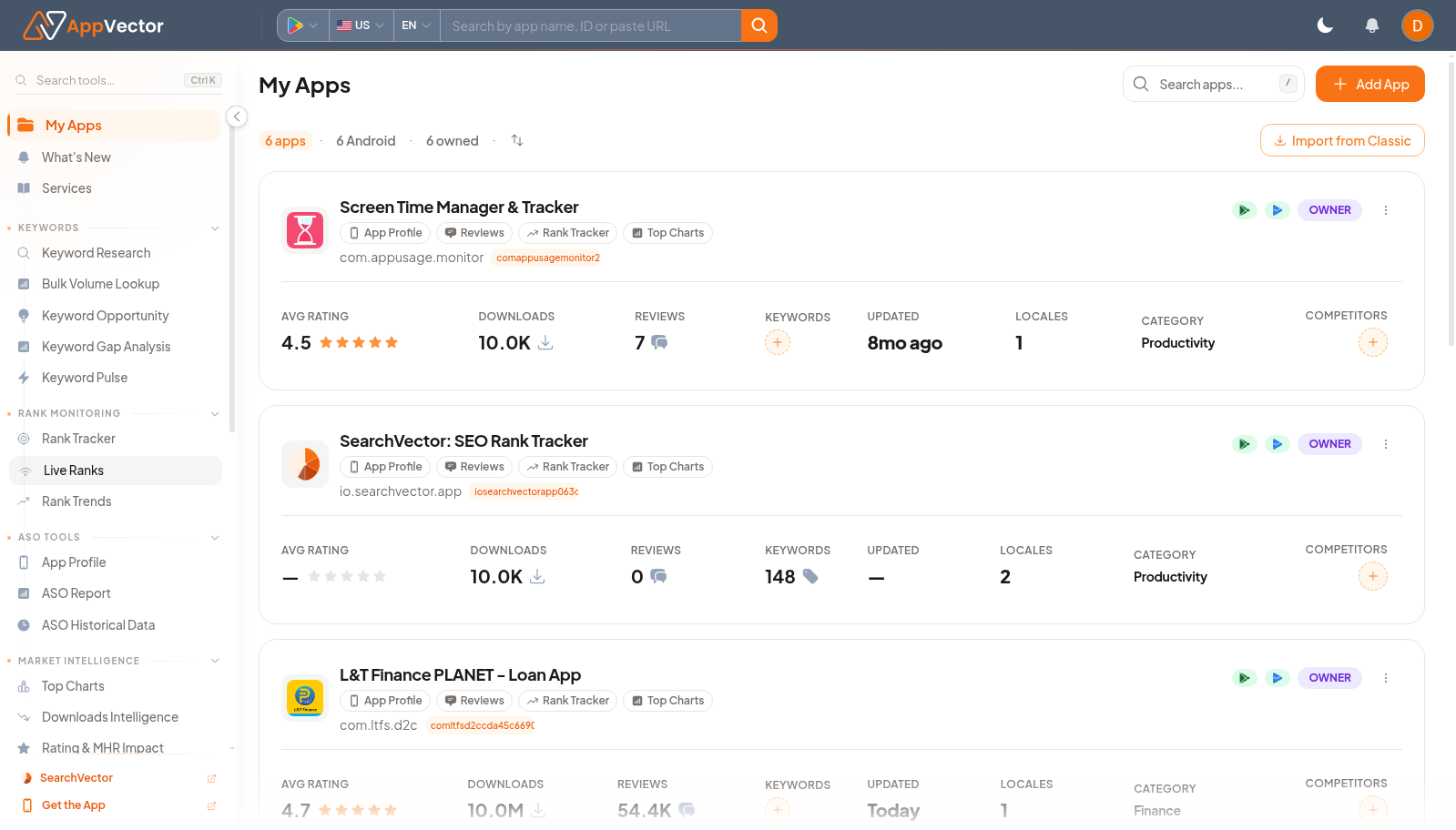
The Dashboard is the starting point for AppVector work. It lists your tracked apps, shows the main product navigation, and gives quick access to keyword, rank monitoring, ASO, market intelligence, Apple Search Ads, app manager, Play Console, and settings workflows.
When To Use It
Use Dashboard when you need to:
- choose the app you want to work on before opening a deeper workflow.
- confirm which apps are already tracked in the workspace.
- open the correct AppVector area from the left navigation.
- sort or review the app list before starting ASO, ranking, or reporting work.
Before You Start
Prepare these inputs:
- App access: make sure the app is already added to the workspace, or use Add App.
- Store context: confirm the store, country, and language selectors in the top bar when a workflow depends on market data.
- Workflow goal: decide whether you are researching keywords, monitoring ranks, reviewing listing health, or managing account settings.
Work Through The Page
- Open My Apps from the left navigation.
- Review the app list and use Sort A-Z if you need a predictable order.
- Use Add App when the app you need is not listed yet.
- Open a workflow from the left navigation, such as Keyword Research, Rank Tracker, App Profile, Top Charts, Review Manager, or Billing.
- Use Import from Classic only when moving older tracked app data into the current workspace.
Read The Results
The app list helps you confirm coverage before you begin deeper work. The visible counters show how many apps are tracked and how many are Android apps or owned apps. The left navigation is grouped by task area, so keyword discovery, rank monitoring, market intelligence, app management, Play Console analysis, and settings stay separated.
Decide What To Do Next
- Open App Profile to review one app listing.
- Open Keywords or Keyword Research when the next task is keyword planning.
- Open ASO Report when you need a broader optimization review.
- Open Review Manager or Store Listing when the task is app-management follow-up.
Tips
- Use the dashboard as the handoff point between research and action.
- Check that the selected app is correct before changing metadata or exporting reports.