Rating And MHR Impact
Rating and MHR Impact helps you investigate whether install movement lines up with metadata-health score or average rating changes for a selected app.
When To Use It
Use Rating And MHR Impact when you need to:
-
compare installs with MHR score movement.
-
compare installs with average rating movement.
-
review weekly or date-range impact trends.
-
export the impact table for reporting
.
Before You Start
Prepare these inputs:
- App: select the app being reviewed.
- Country and language: choose the market context.
- Comparison signal: choose MHR impact or average-rating impact.
- Date range and interval: set controls such as Weekly and Last 28 days.
Work Through The Page
- Open Rating & MHR Impact from Market Intelligence.
- Select the app, country, and language.
- Choose whether to inspect Impact of MHR on Installs or Impact of Average Rating on Installs.
- Set interval and date range.
- Use Export when you need the table outside AppVector.
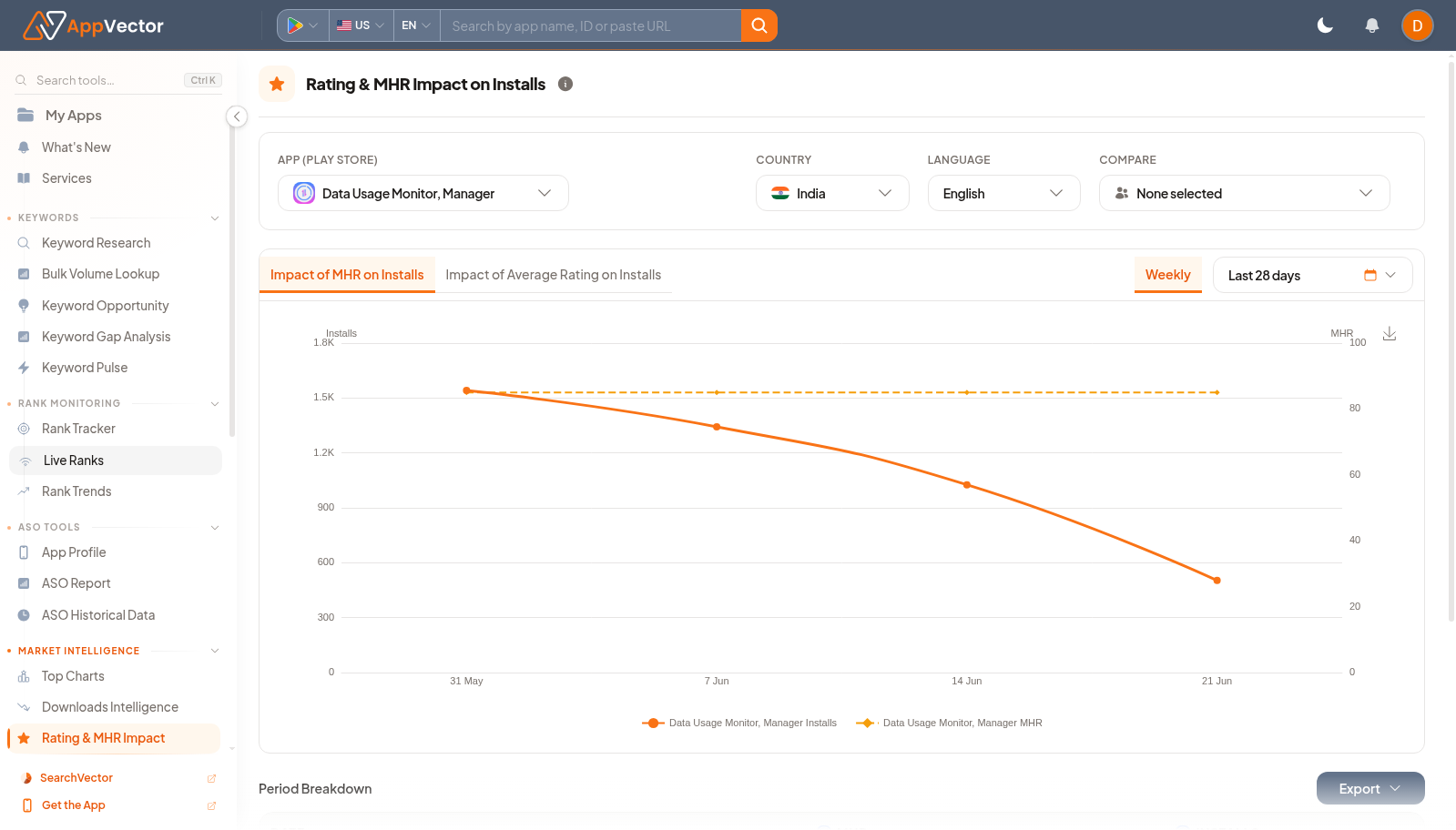
Read The Results
The table connects dates with MHR and installs, while the alternate view connects rating with installs. Treat this as correlation evidence: it can show that movement happened together, but it should be checked against releases, campaigns, and store changes before assigning cause.
Decide What To Do Next
- Open App Profile or ASO Historical Data to check metadata changes around the same dates.
- Open Review Manager if rating movement needs review-level context.
- Use Downloads Intelligence for broader install context.
- Share exported rows only after confirming the app and market.
Tips
- Keep the comparison signal clear in notes.
- Use the same interval when comparing multiple apps.