Keyword Research
Use Keyword Research when you need to find app store search terms before updating metadata, planning ASO work, or deciding which keywords to track. It helps you move from seed ideas to a prioritized list of keywords with demand, usage, and ranking signals.
When To Use It
Use Keyword Research to:
- Turn seed ideas into a broader keyword list.
- Compare search volume, trend, CPC, and metadata coverage before editing metadata.
- Find terms that are not already used in your title, short description, or description.
- Build a keyword backlog for Rank Tracker, ASO Report, and metadata optimization work.
- Check whether a keyword set has enough demand before investing in content or campaign work.
Before You Start
Prepare these inputs:
- Store: choose Google Play or App Store.
- Country: select the market where you want keyword demand and rank signals.
- Language: select the language for keyword suggestions and metadata checks.
- App: choose the app you want to research.
- Seed keywords: enter up to 30 relevant terms, such as app category terms, feature terms, or user-intent phrases.
Use neutral seed terms when you are exploring a new market. For example:
habit tracker
budget planner
meditation app
fitness app
workout tracker
Start A Keyword Search
- Open Keyword Research from the left navigation.
- Confirm the store, country, and language selectors.
- Select the app you want to research.
- Enter one or more seed keywords in the keyword field.
- Click Find Keywords.
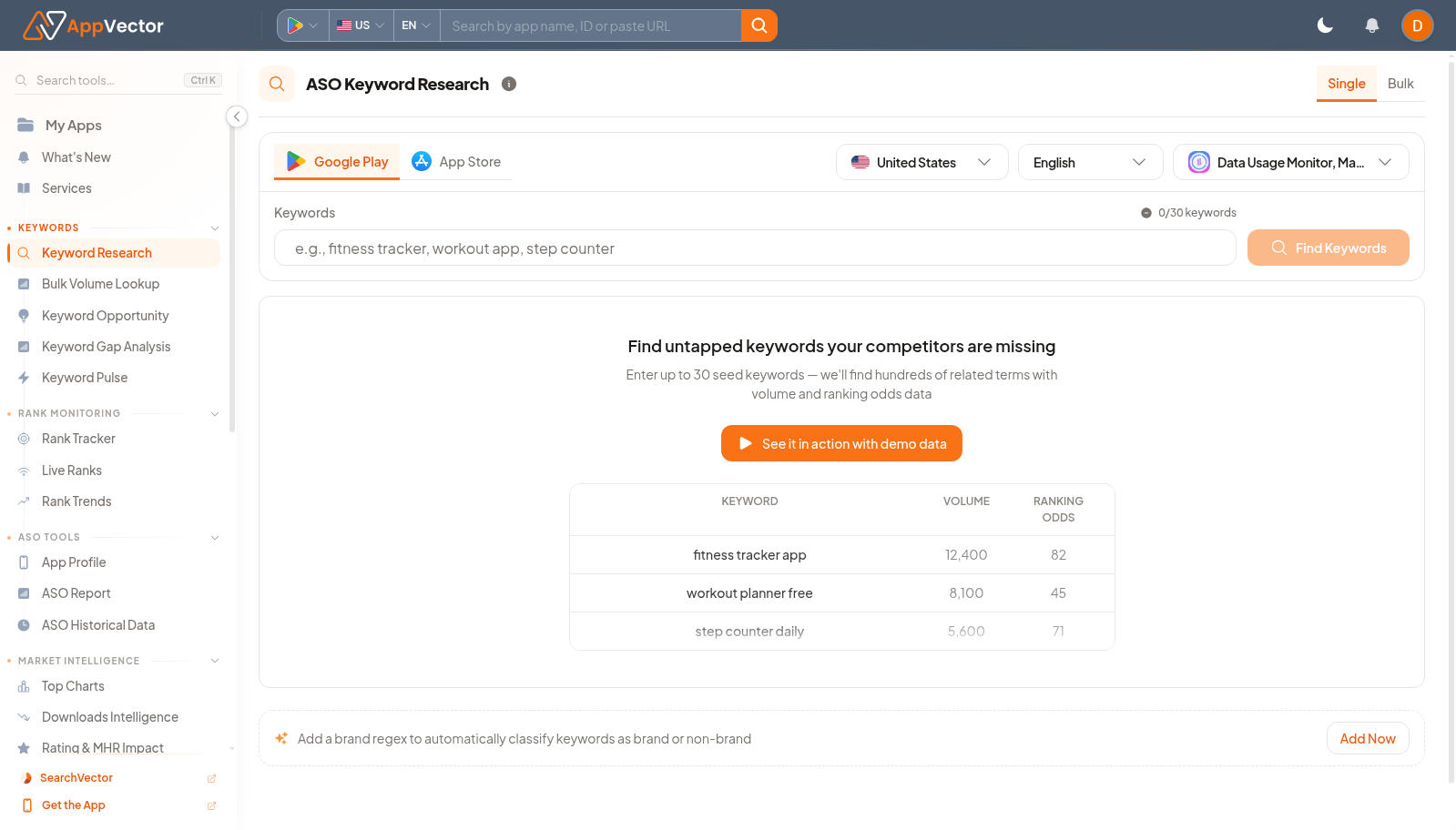
AppVector expands the seed keywords into related opportunities and keeps the original seed visible beside each suggestion where possible.
Read The Results
The results table helps you decide which keywords are worth using, tracking, or rejecting.
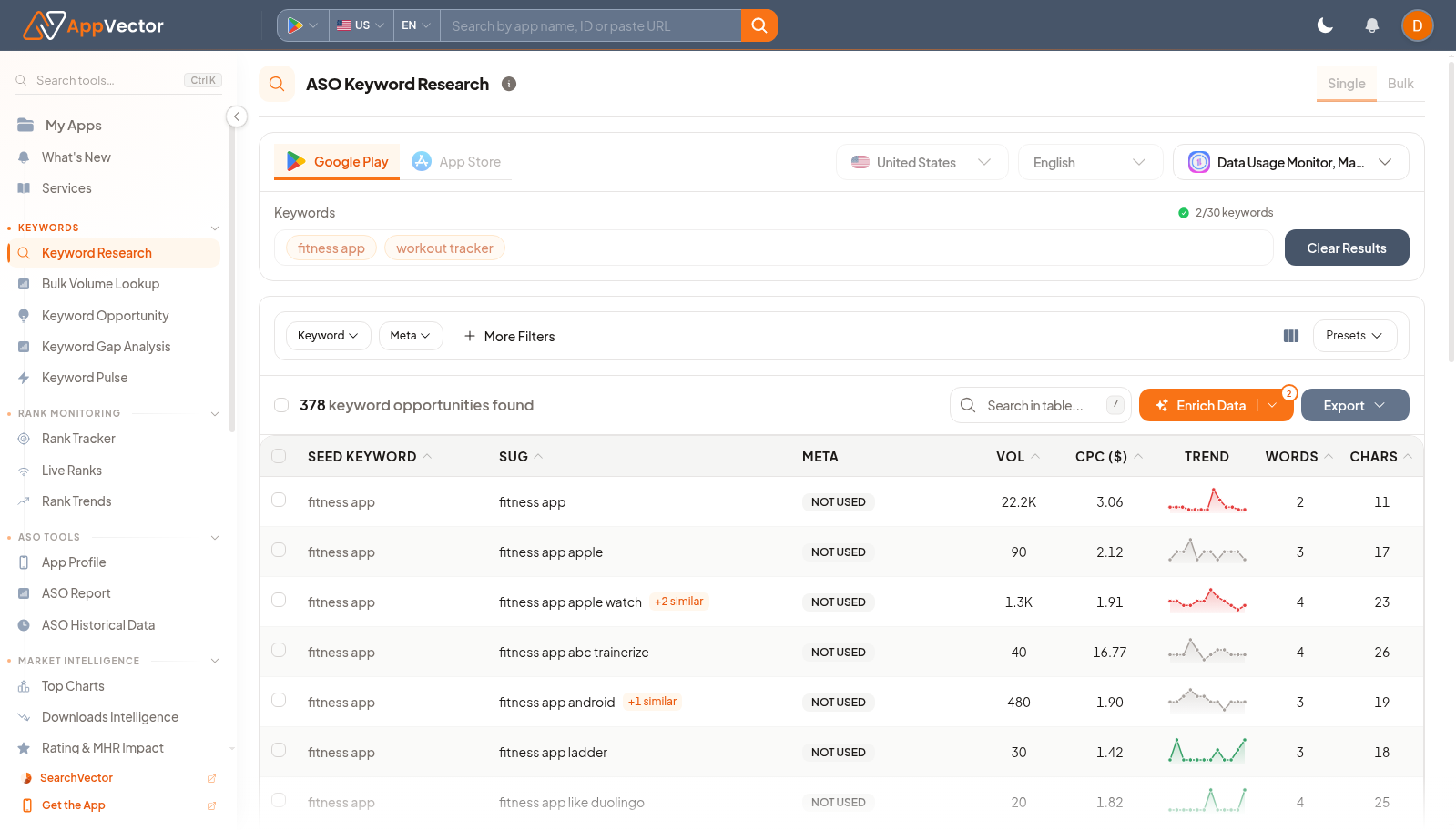
Common columns include:
- Seed Keyword: the seed term that produced the suggestion.
- SUG: the suggested app store search term.
- Meta: whether the term already appears in your app metadata.
- Vol: estimated search volume for the selected market.
- CPC: paid-search cost signal where available.
- Trend: recent movement or demand pattern.
- Words: number of words in the keyword phrase.
- Chars: character count, useful when planning metadata fields.
Use these columns together rather than choosing by one metric. A keyword with high volume but weak relevance may not be better than a lower-volume phrase that closely matches the app's intent.
Decide What To Do Next
After the table loads:
- Review high-volume terms first.
- Look for terms marked Not Used in metadata.
- Compare search volume, CPC, trend, and relevance before shortlisting.
- Use filters such as Keyword, Meta, and More Filters to narrow to long-tail or metadata-gap terms.
- Use Enrich Data or Export after you have a reviewed shortlist.
Good candidates usually have:
- Clear relevance to the app.
- Enough volume to justify optimization work.
- A useful demand or trend signal.
- No current metadata coverage, or weak current coverage.
Avoid keywords that:
- Describe a different category or user intent.
- Have volume but no realistic relevance.
- Are too broad to guide metadata decisions.
- Cannot fit naturally into title, subtitle, short description, or description copy.
Example Workflow
For a fitness app, you might enter:
fitness app
workout tracker
home workout
step counter
Then:
- Sort by Vol to understand demand.
- Check Meta to find metadata gaps.
- Review demand, trend, and metadata coverage before shortlisting terms.
- Shortlist terms that combine relevance, volume, and opportunity.
- Send the shortlist into Rank Tracker or metadata planning.
Follow-Up Workflows
Use Keyword Research outputs in these AppVector workflows:
- App Profile: check whether shortlisted terms fit current title, short description, and description.
- Rank Tracker: monitor important terms over time.
- Keyword Opportunity: prioritize terms with stronger opportunity signals.
- ASO Report: include keyword gaps in a broader optimization report.
- Store Listing: apply selected keywords to metadata updates.
Tips
- Start broad, then narrow with filters.
- Research each country separately because demand and trend signals change by market.
- Use long-tail keywords when broad category terms are too competitive.
- Re-run research after major app updates, category shifts, or seasonal changes.
- Keep a separate shortlist for tracking and a separate shortlist for metadata edits.