Custom Store Listings
Custom Store Listings helps teams inspect performance for Google Play custom listing variants. It is useful when acquisition work depends on country, campaign, or audience-specific listing variants.
When To Use It
Use Custom Store Listings when you need to:
- review custom listing performance for a selected app.
- compare custom listing impact over a date range.
- check whether localized or campaign-specific listings need attention.
- use demo data before connecting or selecting production data.
Before You Start
Prepare these inputs:
- App: search for the app or package.
- Date range: select a window such as Last 28 days.
- Play Console access: confirm custom listing data is available.
- Variant question: know which listing or audience you are investigating.
Work Through The Page
- Open Custom Store Listings from Advanced Play Console.
- Search for the app or package.
- Choose the date range.
- Use See demo if no safe app data should be shown.
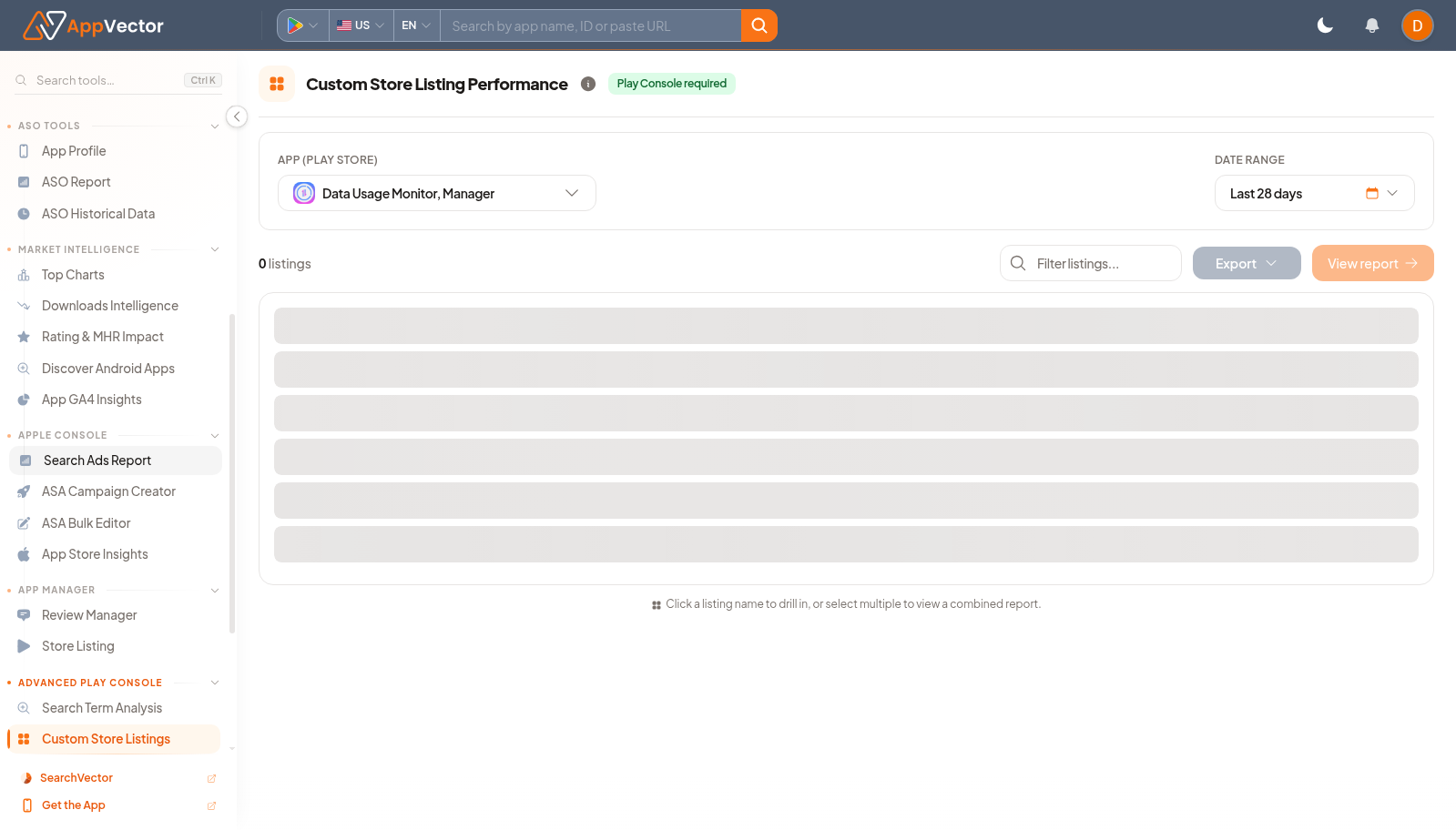
- Review listing rows or performance cards once data loads.
Read The Results
Interpret the page by listing variant and date range. A strong or weak result only matters when you know which custom listing, market, or audience it came from.
Decide What To Do Next
- Use findings to prioritize listing copy, creative, or localization changes.
- Open Store Listing if the base listing also needs edits.
- Review Localization Insights when country or language coverage explains performance differences.
- Compare with Downloads Intelligence if listing changes may have affected installs.
Tips
- Use one app and one date range at a time.
- Do not merge custom listing conclusions with default listing performance without checking variant context.